Using IndexedDB: creating and deleting a database
Creating a database
Our online example at JSBin shows how to create and populate an object store named “CustomerDB”. This example should work on both mobile and desktop versions of all major post-2012 browsers.
We suggest that you follow what is happening using Google Chrome’s developer tools. Other browsers offer equivalent means for debugging Web applications that use IndexedDB.
With Chrome, please open the JSBin example and activate the Developer tool console (F12 or cmd-alt-i). Open the JavaScript and HTML tabs on JSBin.
Then, click the “Create CustomerDB” button in the HTML user interface of the example: it will call the createDB() JavaScript function that:
- creates a new IndexedDB database and an object store in it (“customersDB”), and
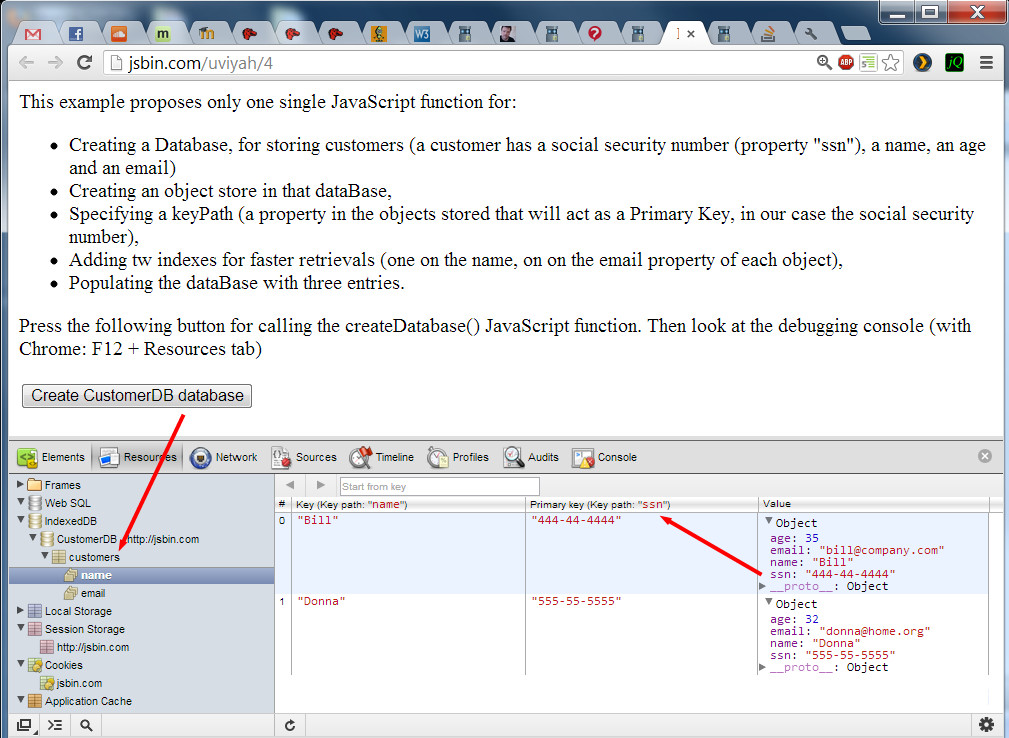
- inserts two javascript objects (look at the console in your devtools – the Web app prints lots of traces in there, explaining what it does under the hood). Note that the social security number is the “Primary key”, called a key path in the IndexedDB vocabulary (red arrow on the right of the screenshot).
Chrome DevTools (F12 or cmd-alt-i) shows the IndexedDB databases, object stores and data:
Normally, when you create a database for the first time, the console should show this message:

This message comes from the JavaScript request.onupgradeneeded callback. Indeed, the first time we open the database we ask for a specific version (in this example: version 2) with:
- var request = indexedDB.open(dbName, 2);
…and if there is no version “2” of the database, then we enter the onupgradeneeded callback where we actually create the database.
You can try to click again on the button “CreateCustomerDatabase”, if database version “2” exists, this time the request.onsuccess callback will be called. This is where we will add/remove/search data (you should see a message on the console).
Notice that the version number cannot be a float: “1.2” and “1.4” will automatically be rounded to “1”.
JavaScript code from the example:
- var db; // the database connection we need to initialize
- function createDatabase() {
- if(!window.indexedDB) {
- window.alert(“Your browser does not support a stable version
- of IndexedDB”);
- }
- // This is what our customer data looks like.
- var customerData = [
- { ssn: “444-44-4444”, name: “Bill”, age: 35, email:
- “bill@company.com” },
- { ssn: “555-55-5555”, name: “Donna”, age: 32, email:
- “donna@home.org” }
- ];
- var dbName = “CustomerDB”;
- // version must be an integer, not 1.1, 1.2 etc…
- var request = indexedDB.open(dbName, 2);
- request.onerror = function(event) {
- // Handle errors.
- console.log(“request.onerror errcode=” + event.target.error.name);
- };
- request.onupgradeneeded = function(event) {
- console.log(“request.onupgradeneeded, we are creating a
- new version of the dataBase”);
- db = event.target.result;
- // Create an objectStore to hold information about our
- // customers. We’re going to use “ssn” as our key path because
- // it’s guaranteed to be unique
- var objectStore = db.createObjectStore(“customers”,
- { keyPath: “ssn” });
- // Create an index to search customers by name. We may have
- // duplicates so we can’t use a unique index.
- objectStore.createIndex(“name”, “name”, { unique: false });
- // Create an index to search customers by email. We want to
- // ensure that no two customers have the same email, so use a
- // unique index.
- objectStore.createIndex(“email”, “email”, { unique: true });
- // Store values in the newly created objectStore.
- for (var i in customerData) {
- objectStore.add(customerData[i]);
- }
- }; // end of request.onupgradeneeded
- request.onsuccess = function(event) {
- // Handle errors.
- console.log(“request.onsuccess, database opened, now we can add
- / remove / look for data in it!”);
- // The result is the database itself
- db = event.target.result;
- };
- } // end of function createDatabase
Explanations:
All the “creation” process is done in the onupgradeneeded callback (lines 26-50):
- Line 30: get the database created in the result of the dom event: db = event.target.result;
- Line 35: create an object store named “customers” with the primary key being the social security number (“ssn” property of the JavaScript objects we want to store in the object store): var objectStore = db.createObjectStore(“customers”, {keyPath: “ssn”});
- Lines 39 and 44: create indexes on the “name” and “email” properties of JavaScript objects: objectStore.createIndex(“name”, “name”, {unique: false});
- Lines 48-50: populate the database: objectStore.add(…).
Note that we did not create any transaction, as the onupgradeneeded callback on a create database request is always in a default transaction that cannot overlap with another transaction at the same time.
If we try to open a database version that exists, then the request.onsuccess callback is called. This is where we are going to work with data. The DOM event result attribute is the database itself, so it is wise to store it in a variable for later use: db = event.target.result;
Deleting a database
You can delete a database simply by running this command:
- indexedDB.deleteDatabase(“databaseName”);
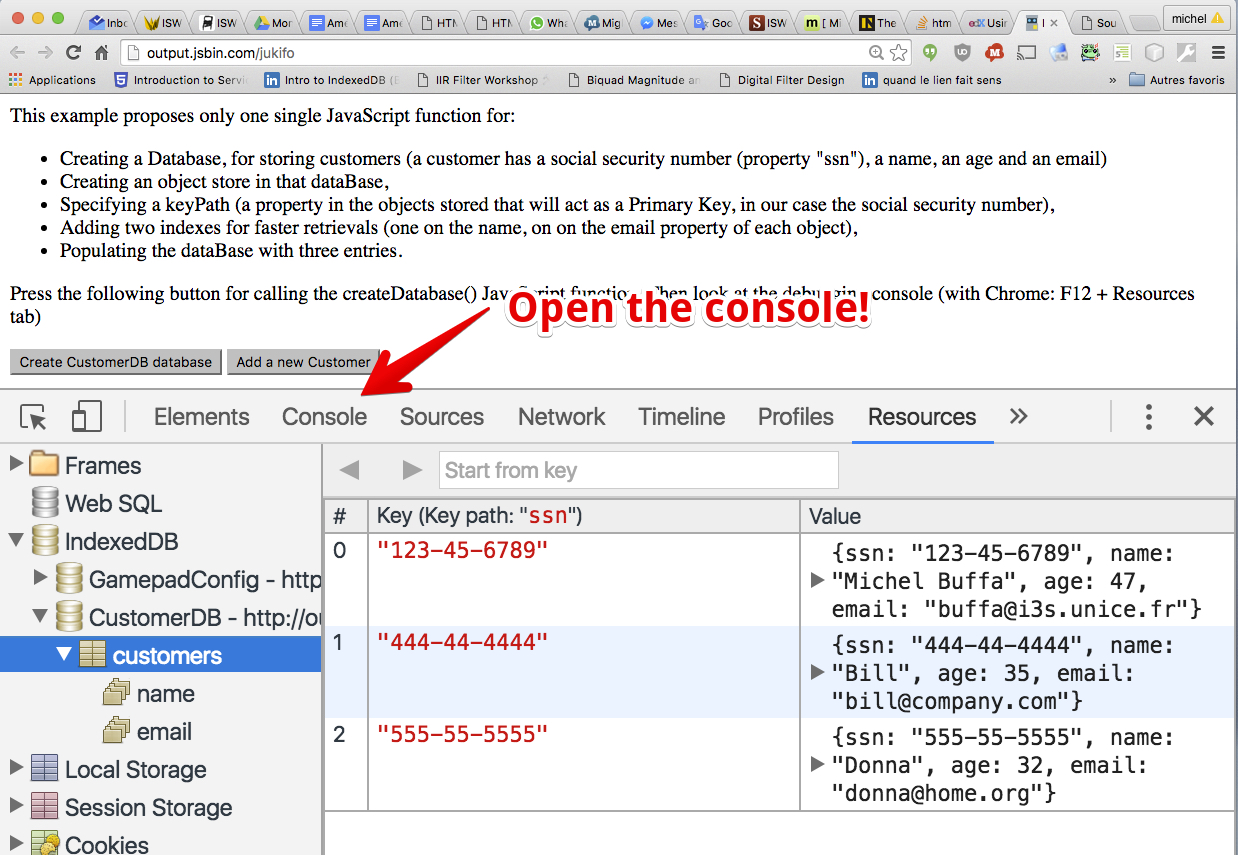
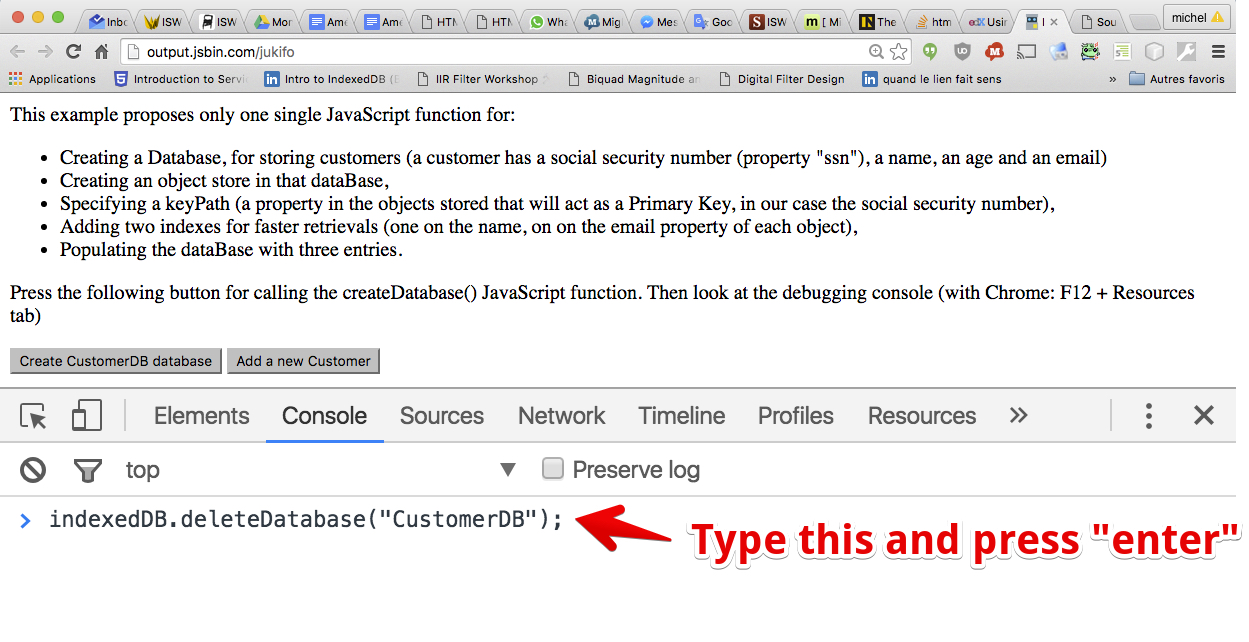
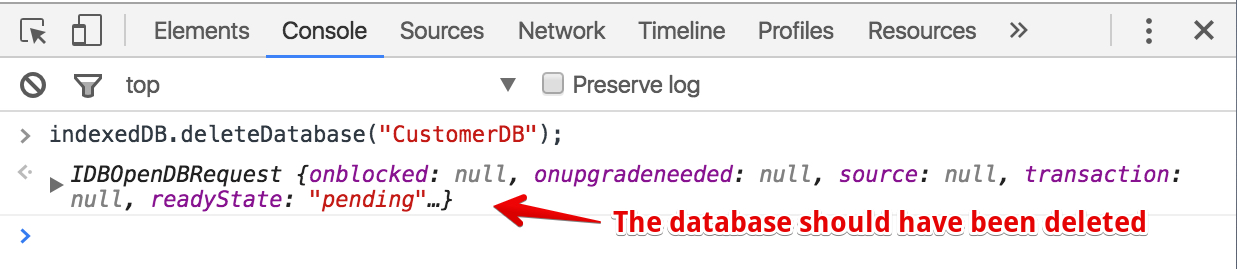
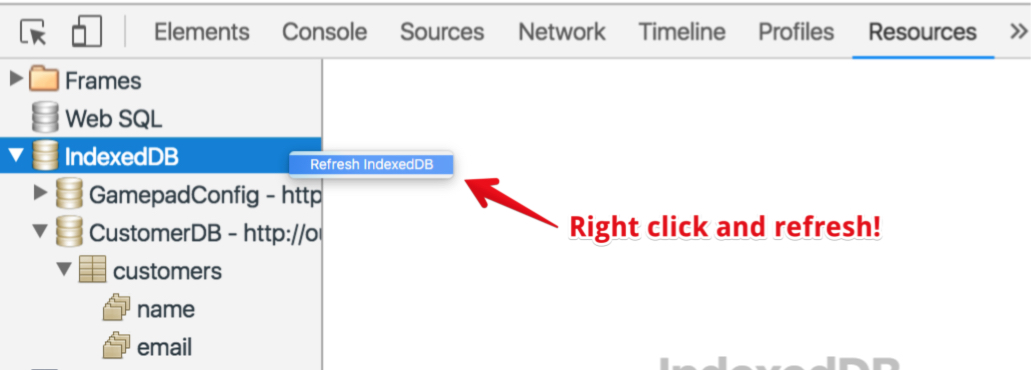
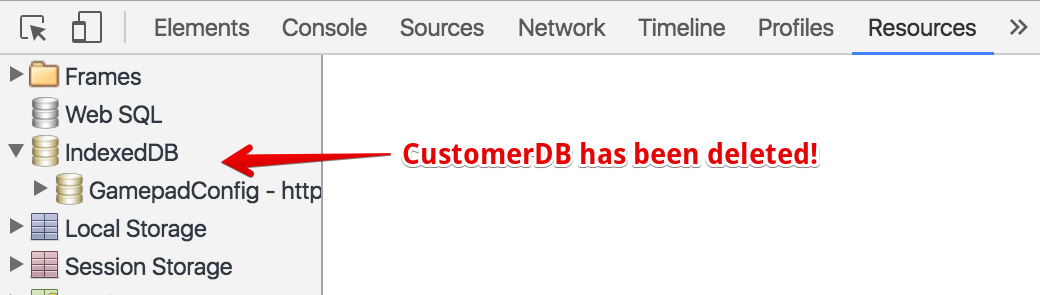
A common practice, while learning how IndexedDB works, is to type this command in the devtool console. For example, we can delete the CustomerDB database used in all examples of this course section by opening one of the JsBin examples , then opening the devtool console, then executing indexedDB.deleteDatabase(“CustomerDB”); in the console:
 HTML game