Uploading binary files with XHR2
Here is an example that uses a FormData object for uploading one or more files to an HTTP server.
Notice that the URL of the server is fake, so the request will fail. However, the simulation takes time, and it is interesting to see how it works.
We will show full examples of real working code with server-side PHP source, during the “File API, drag and drop and XHR2” lecture, later this week..
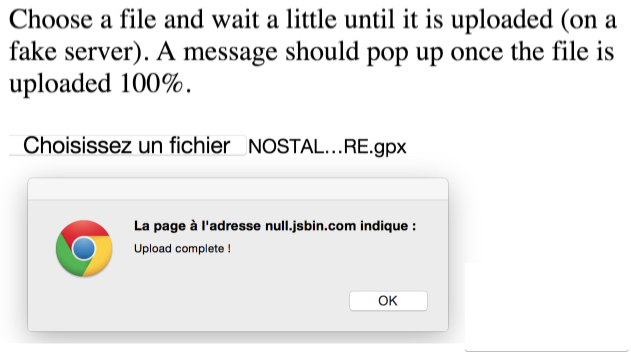
Source code of the example:
- <!DOCTYPE html>
- <html lang=“en”>
- <head>
- <meta charset=“utf-8” />
- <title>File upload with XMLHttpRequest level 2 and HTML5</title>
- </head>
- <body>
- <h1>Example of XHR2 file upload</h1>
- Choose a file and wait a little until it is uploaded (on a fake
- server). A message should pop up once the file is uploaded 100%.
- <p>
- <input id=“file” type=“file” />
- </p>
- var fileInput = document.querySelector(‘#file’);
- fileInput.onchange = function() {
- var xhr = new XMLHttpRequest();
- xhr.open(‘POST’, ‘upload.html’); // With FormData,
- // POST is mandatory
- xhr.onload = function() {
- alert(‘Upload complete !’);
- };
- var form = new FormData();
- form.append(‘file’, fileInput.files[0]);
- // send the request
- xhr.send(form);
- };
- </body>
- </html>
Explanations:
- Line 18: callback called when the user selects a file.
- Lines 19-20: preparation of the XHR2 request.
- Lines 27-30: a FormData object is created (this will contain the (MIME) multipart form-data which will be sent by the POST request).
- Line 30: the request is sent, with the FormData object passed as a parameter (all data is sent).
- Line 23: when the file is completely uploaded, the onload listener is called and an alert message is displayed.
Monitor the upload progress
Here is a more user-friendly example. It is basically the same, but this time, we’ll monitor the progress of the upload using a method similar to that used for monitoring file downloads:
- We use a <progress> element and its two attributes value and max.
- We also bind an event handler to the progress event that an XMLHttpRequest will trigger. The event has two properties: loaded and totalthat respectively correspond to the number of bytes that have been uploaded, and to the total number of bytes we need to upload (i.e., the file size).
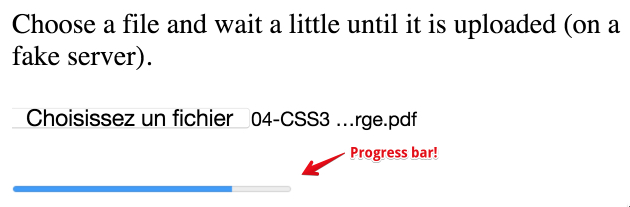
Here is the code of such an event listener:
- xhr.upload.onprogress = function(e) {
- progress.value = e.loaded; // number of bytes uploaded
- progress.max = e.total; // total number of bytes in the file
- };
Code from this example (nearly the same as previous example’s code):
- <!DOCTYPE html>
- <html lang=“en”>
- <head>
- <meta charset=“utf-8” />
- <title>HTML5 file upload with monitoring</title>
- </head>
- <body>
- <h1>Example of XHR2 file upload, with progress bar</h1>
- Choose a file and wait a little until it is uploaded (on a fake server).
- <p>
- <input id=“file” type=“file” />
- <br/><br/>
- <progress id=“progress” value=0></progress>
- var fileInput = document.querySelector(‘#file’),
- progress = document.querySelector(‘#progress’);
- fileInput.onchange = function() {
- var xhr = new XMLHttpRequest();
- xhr.open(‘POST’, ‘upload.html’);
- xhr.upload.onprogress = function(e) {
- progress.value = e.loaded;
- progress.max = e.total;
- };
- xhr.onload = function() {
- alert(‘Upload complete!’);
- };
- var form = new FormData();
- form.append(‘file’, fileInput.files[0]);
- xhr.send(form);
- };
- </body>
- </html>
The only difference between these two worked-examples is the onprogress listener which updates the progress bar’s value and maxattributes.
 HTML game