The Shadow DOM: encapsulate styles and scripts
Encapsulate CSS and JS code in your templates, and hide theM USING Shadow DOM
By mixing templates and the shadow DOM, it is possible to hide a template’s content by embedding it in the shadow root. In this scenario, it’s easy to encapsulate CSS styles and/or JavaScript code so that it will affect only the content of the shadow root. Conversely, external CSS will not apply inside the shadow root.
This is an important feature: the content of a new “widget” that is hidden in a shadow root is protected from external CSS, scripts, etc.
an Example that mixes templates and shadow DOM:
HTML part:
- <template id=“mytemplate”>
- <style>
- h1 {color:white; background:red}
- </style>
- <h1>This is a shadowed H1</h1>
- </template>
The JavaScript part:
- // Instanciate the template
- var t = document.querySelector(‘#mytemplate’);
- // Create a root node under our H1 title
- var host = document.querySelector(‘#withShadowDom’);
- const shadowRoot = host.attachShadow({mode: ‘open’});
- // insert something into the shadow DOM, this will be rendered
- shadowRoot.appendChild(document.importNode(t.content, true));

Note that once again, the content shown is the shadow root + the styles applied. The styles applied are those defined in the template’s contentthat has been cloned and put inside the shadow root.
NB a little bit of French squeezed past our filters. “Instanciate” in French (and other languages) means “Instantiate” in English. We hope you’ll translate, as appropriate; but if you seek definitions or use the word in web-searches, then the English spelling will help!
Internal CSS will not apply outside the template/shadow DOM
The CSS inside the template will not affect any other H1 elements on the page. This CSS rule (lines 2-4 in the HTML part) will only apply to the template’s content, with no side-effects on other elements outside.
Look at this example at JSBin that uses two H1s in the document: one is associated with a shadow root (defined in a template with an embedded CSS that selects H1 elements and makes them white on red); whereas the other is located in the body of the document and is not affected by the CSS within the Web Component.
Beware: the included polyfill will not emulate CSS encapsulation. To see the real behavior, try with Chrome or Opera!
The HTML part:
- <template id=“mytemplate”>
- <style>
- h1 {color:white; background:red}
- </style>
- <h1>This is a shadowed H1</h1>
- </template>
- <body>
- <h1 id=“withShadowDom”>This is a text header</h1>
- <h1>Normal header with no shadow DOM associated.</h1>
- </body>
We added a new H1 at line 11.
And here is the result:
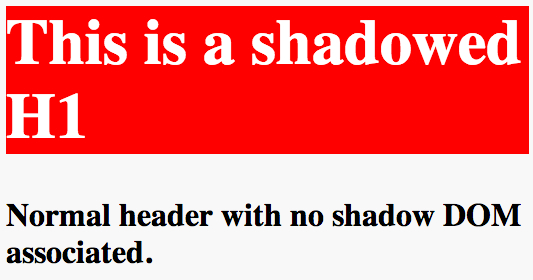
The second H1 is not affected by the CSS defined in the template used by the first H1. Try to add this CSS rule to this example :
- h1 {
- color:green;
- }
And you should see something like that:
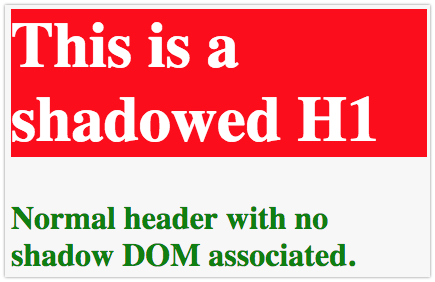
In which the “regular” CSS rule changed the color of the H1 located in the body of the document, not the color of the H1 encapsulated in the Shadow DOM.
 HTML game