Drag and drop a text selection
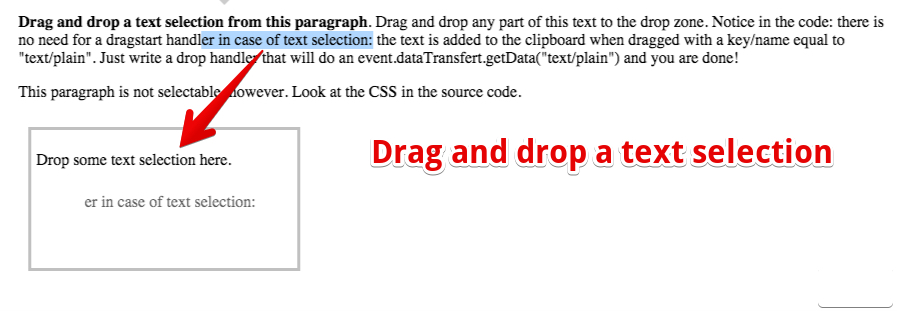
There is no need to add a dragstart handler on an element that contains text. Any selected text is automatically added to the clipboard with a name/key equal to “text/plain”. Just add a drop event handler on the drop zone and fetch the data from the clipboard using “text/plain” as the access key:
- function drop(target, event) {
- event.preventDefault();
- target.innerHTML = event.dataTransfer.getData(‘text/plain’);
- };
Example: select some text and drag and drop the selection in the drop zone
Try it in your browser below (select text, then drag and drop it into the drop zone) or play with it at CodePen:
Complete source code from the example:
- <html lang=”en”>
- <head>
- <style>
- .box {
- border: silver solid;
- width: 256px;
- height: 128px;
- margin: 10px;
- padding: 5px;
- float: left;
- }
- .notDraggable {
- user–select: none;
- }
- </style>
- function drop(target, event) {
- event.preventDefault();
- target.innerHTML = event.dataTransfer.getData(‘text/plain’);
- };
- </head>
- <body>
- <p id=“text”>
- <b>Drag and drop a text selection from this paragraph</b>. Drag and drop any
- part of this text to
- the drop zone. Notice in the code: there is no need for a dragstart handler in case of
- text selection:
- the text is added to the clipboard when dragged with a key/name equal to “text/plain”.
- Just write a
- drop handler that will do an event.dataTransfer.getData(“text/plain”) and you are
- done!
- </p>
- <p class=“notDraggable”>
- This paragraph is not selectable however. Look at the CSS in the source code.
- </p>
- class=“box” ondragover=“return false“ ondrop=“drop(this, event)“>
- Drop some text selection here.
- </body>
- </html>
Here, we use a CSS trick to make the second paragraph non-selectable, by setting the user-selected property to none.
In the next chapter of Week 3, we will see how to drag and drop files!
 HTML game