Add visual feedback when you drag something, when the mouse enters a drop zone, etc.
We can associate some CSS styling with the lifecycle of a drag and drop. This is easy to do as the drag and drop API provides many events we can listen to, and can be used on the draggable elements as well as in the drop zones:
- dragstart: this event, which we discussed in a previous section, is used on draggable elements. We used it to get a value from the element that was dragged, and copied it onto the clipboard. It’s a good time to add some visual feedback – for example, by adding a CSS class to the draggable object.
- dragend: this event is launched when the drag has ended (on a drop or if the user releases the mouse button outside a drop zone). In both cases, it is a best practice to reset the style of the draggable object to default.
The next screenshot shows the use of CSS styles (green background + dashed border) triggered by the start of a drag operation. As soon as the drag ends and the element is dropped, we reset the style of the dragged object to its default. The full runnable online example is a bit further down the page (it includes, in addition, visual feedback on the drop zone):
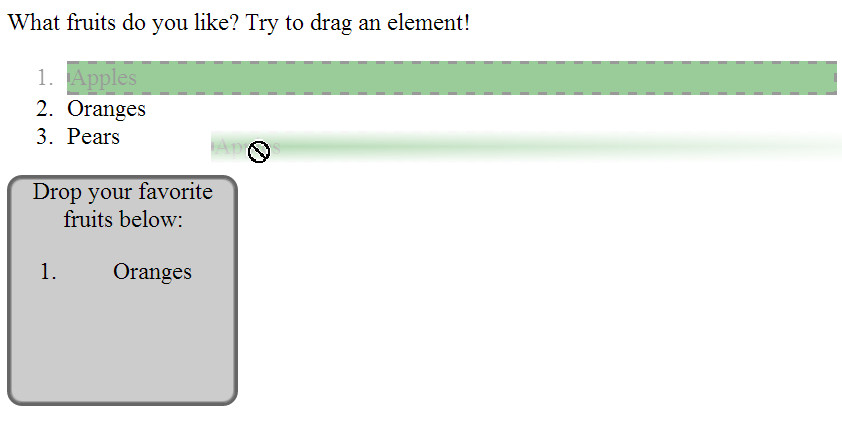
Source code extract:
- …
- <style>
- .dragged {
- border: 2px dashed #000;
- background–color: green;
- }
- </style>
- function dragStartHandler(event) {
- // Change CSS class for visual feedback
- event.target.style.opacity = ‘0.4’;
- event.target.classList.add(‘dragged’);
- console.log(‘dragstart event, target: ‘ + event.target);
- // Copy to the drag’n’drop clipboard the value of the data* attribute of the target,
- // with a type “Fruits”.
- event.dataTransfer.setData(“Fruit”, event.target.dataset.value);
- }
- function dragEndHandler(event) {
- console.log(“drag end”);
- // Set draggable object to default style
- event.target.style.opacity = ‘1’;
- event.target.classList.remove(‘dragged’);
- }
- script>
- …
- ol ondragstart=“dragStartHandler(event)” ondragend=“dragEndHandler(event)” >
- li draggable=“true” data–value=“fruit-apple”>Applesli>
- li draggable=“true” data–value=“fruit-orange”>Orangesli>
- li draggable=“true” data–value=“fruit-pear”>Pearsli>
- ol>
Notice at lines 12 and 24 the use of the classlist property that has been introduced with HTML5 in order to allow CSS class manipulation from JavaScript.
Other events can also be handled:
- dragenter: usually we bind this event to the drop zone. The event occurs when a dragged object enters a drop zone. So, we could change the look of the drop zone.
- dragleave: this event is also used in relation to the drop zone. When a dragged element leaves the drop zone (maybe the user changed his mind?), we must set the look of the drop zone back to normal.
- dragover: this event is also generally bound to elements that correspond to a drop zone. A best practice here is to prevent the propagation of the event, and also to prevent the default behavior of the browser (i.e. if we drop an image, the default behavior is to display its full size in a new page, etc.)
- drop: also on the drop zone. This is when we actually process the drop (get the value from the clipboard, etc). It’s also necessary to reset the look of the drop zone to default.
Complete example with visual feedback on draggable objects and the drop zone
The following example shows how to use these events in a droppable zone.
Try it in your browser below or directly at CodePen:
Complete source code (for clarity’s sake, we put the CSS and JavaScript into a single HTML page):
- div {
- height: 150px;
- width: 150px;
- float: left;
- border: 2px solid #666666;
- background–color: #ccc;
- margin–right: 5px;
- border–radius: 10px;
- box–shadow: inset 0 0 3px #000;
- text–align: center;
- cursor: move;
- }
- .dragged {
- border: 2px dashed #000;
- background–color: green;
- }
- .draggedOver {
- border: 2px dashed #000;
- background–color: green;
- }
- function dragStartHandler(event) {
- // Change css class for visual feedback
- event.target.style.opacity = ‘0.4’;
- event.target.classList.add(‘dragged’);
- console.log(‘dragstart event, target: ‘ + event.target.innerHTML);
- // Copy in the drag’n’drop clipboard the value of the data* attribute of the target,
- // with a type “Fruits”.
- event.dataTransfer.setData(“Fruit”, event.target.dataset.value);
- }
- function dragEndHandler(event) {
- console.log(“drag end”);
- event.target.style.opacity = ‘1’;
- event.target.classList.remove(‘dragged’);
- }
- function dragLeaveHandler(event) {
- console.log(“drag leave”);
- event.target.classList.remove(‘draggedOver’);
- }
- function dragEnterHandler(event) {
- console.log(“Drag enter”);
- event.target.classList.add(‘draggedOver’);
- }
- function dragOverHandler(event) {
- //console.log(“Drag over a droppable zone”);
- event.preventDefault(); // Necessary. Allows us to drop.
- }
- function dropHandler(event) {
- console.log(‘drop event, target: ‘ + event.target);
- // reset the visual look of the drop zone to default
- event.target.classList.remove(‘draggedOver’);
- var li = document.createElement(‘li’);
- // get the data from the drag’n’drop clipboard, with a type=”Fruit”
- var data = event.dataTransfer.getData(“Fruit”);
- if (data == ‘fruit-apple’) {
- li.textContent = ‘Apples’;
- } else if (data == ‘fruit-orange’) {
- li.textContent = ‘Oranges’;
- } else if (data == ‘fruit-pear’) {
- li.textContent = ‘Pears’;
- } else {
- li.textContent = ‘Unknown Fruit’;
- }
- // add the dropped data as a child of the list.
- document.querySelector(“#droppedFruits”).appendChild(li);
- }
- </head>
- <body>
- <p>What fruits do you like? Try to drag an element!</p>
- <ol ondragstart=“dragStartHandler(event)“ ondragend=“dragEndHandler(event)“ >
- <li draggable=“true” data-value=“fruit-apple”>Apples</li>
- <li draggable=“true” data-value=“fruit-orange”>Oranges</li>
- <li draggable=“true” data-value=“fruit-pear”>Pears</li>
- </ol>
- id=“droppableZone” ondragenter=“dragEnterHandler(event)“ ondrop=“dropHandler(event)“
- ondragover=“dragOverHandler(event)“ ondragleave=“dragLeaveHandler(event)“>
- Drop your favorite fruits below:
- id=“droppedFruits”>
- <body>
- <html>
 HTML game