Sprite extraction and animation
Principle
Before doing anything interesting with the sprites, we need to:
- Load the sprite sheet(s),
- Extract the different postures and store them in an array of sprites,
- Choose the appropriate one, and draw it within the animation loop, taking into account elapsed time. We cannot draw a different image of the woman walking at 60 updates per second. We will have to create a realistic “delay” between each change of sprite image.
In this lesson, we will construct an interactive tool to present the principles of sprite extraction and animation.
Sprite extraction
In this example, we’ll move the slider to extract the sprite indicated by the slider value. See the red rectangle? This is the sprite image currently selected! When you move the slider, the corresponding sprite is drawn in the small canvas. As you move the slider from one to the next, see how the animation is created?
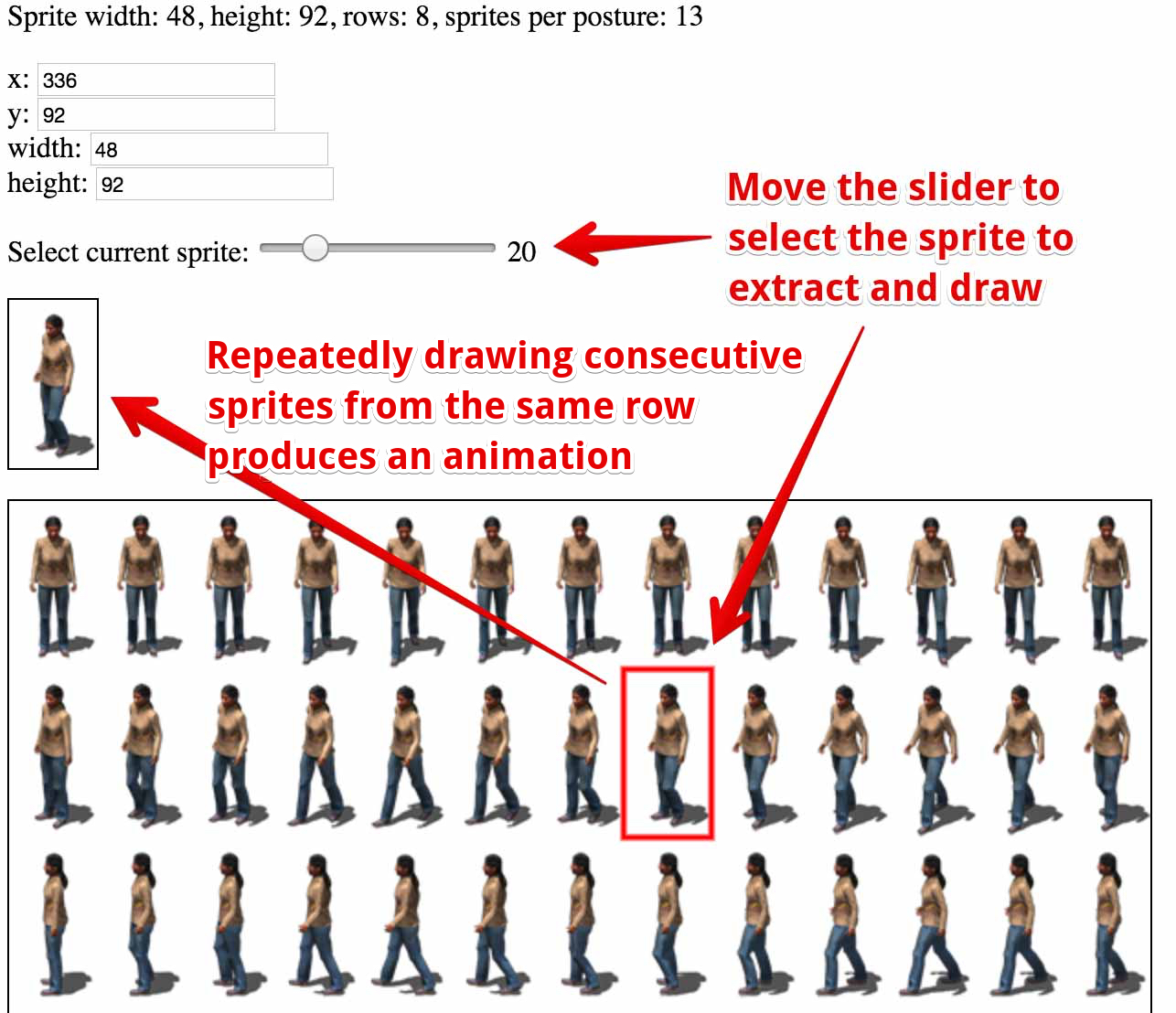
HTML code:
- <html lang=“en”>
- <head>
- <title>Extract and draw sprite</title>
- <style>
- canvas {
- border: 1px solid black;
- }
- </style>
- </head>
- <body>
- Sprite width: 48, height: 92, rows: 8, sprites per posture: 13<p>
- <label for=“x”>x: <input id=“x” type=“number” min=0><br/>
- <label for=“y”>y: <input id=“y” type=“number” min=0><br/>
- <label for=“width”>width: <input id=“width” type=“number” min=0><br/>
- <label for=“height”>height: <input id=“height” type=“number” min=0><p>
- Select current sprite: <input type=range id=“spriteSelect” value=0> <output id=“spriteNumber”>
- <p/>
- <canvas id=“canvas” width=“48” height=“92” />
- </p>
- <canvas id=“spritesheet”></canvas>
- </body>
- </html>
Notice that we use an <input type=”range”> to select the current sprite, and we have two canvases: a small one for displaying the currently-selected sprite, and a larger one that contains the sprite sheet and in which we draw a red square to highlight the selected sprite.
Here’s an extract from the JavaScript. You don’t have to understand all the details, just look at the part in bold which extracts the individual sprites:
- var SPRITE_WIDTH = 48; // Characteristics of the sprites and spritesheet
- var SPRITE_HEIGHT = 92;
- var NB_ROWS = 8;
- var NB_FRAMES_PER_POSTURE = 13;
- // the different input and output fields
- var xField, yField, wField, hField, spriteSelect, spriteNumber;
- // The two canvases and respective contexts
- var canvas, canvasSpriteSheet, ctx1, ctx2;
- window.onload = function() {
- canvas = document.getElementById(“canvas”);
- ctx1 = canvas.getContext(“2d”);
- canvasSpriteSheet = document.getElementById(“spritesheet”);
- ctx2 = canvasSpriteSheet.getContext(“2d”);
- xField = document.querySelector(“#x”);
- yField = document.querySelector(“#y”);
- wField = document.querySelector(“#width”);
- hField = document.querySelector(“#height”);
- spriteSelect = document.querySelector(“#spriteSelect”);
- spriteNumber = document.querySelector(“#spriteNumber”);
- // Update values of the input fields in the page
- wField.value = SPRITE_WIDTH;
- hField.value = SPRITE_HEIGHT;
- xField.value = 0;
- yField.value = 0;
- // Set attributes for the slider depending on the number of sprites on the
- // sprite sheet
- spriteSelect.min = 0;
- spriteSelect.max=NB_ROWS*NB_FRAMES_PER_POSTURE – 1;
- // By default the slider is disabled until the sprite sheet is fully loaded
- spriteSelect.disabled = true;
- spriteNumber.innerHTML=0;
- // Load the spritesheet
- spritesheet = new Image();
- spritesheet.src=“http://i.imgur.com/3VesWqx.png”;
- // Called when the spritesheet has been loaded
- spritesheet.onload = function() {
- // enable slider
- spriteSelect.disabled = false;
- // Resize big canvas to the size of the sprite sheet image
- canvasSpriteSheet.width = spritesheet.width;
- canvasSpriteSheet.height = spritesheet.height;
- // Draw the whole spritesheet
- ctx2.drawImage(spritesheet, 0, 0);
- // Draw the first sprite in the big canvas, corresponding to sprite 0
- // wireframe rectangle in the sprite sheet
- drawWireFrameRect(ctx2, 0 , 0, SPRITE_WIDTH, SPRITE_HEIGHT, ‘red’, 3);
// small canvas, draw sub image corresponding to sprite 0- ctx1.drawImage(spritesheet, 0, 0, SPRITE_WIDTH, SPRITE_HEIGHT,
- 0, 0, SPRITE_WIDTH, SPRITE_HEIGHT);
- };
- // input listener on the slider
- spriteSelect.oninput = function(evt) {
- // Current sprite number from 0 to NB_FRAMES_PER_POSTURE * NB_ROWS
- var index = spriteSelect.value;
- // Computation of the x and y position that corresponds to the sprite
- // number index as selected by the slider
- var x = index * SPRITE_WIDTH % spritesheet.width;
- var y = Math.floor(index / NB_FRAMES_PER_POSTURE) * SPRITE_HEIGHT;
- // Update fields
- xField.value = x;
- yField.value = y;
- // Clear big canvas, draw wireframe rect at x, y, redraw stylesheet
- ctx2.clearRect(0, 0, canvasSpriteSheet.width, canvasSpriteSheet.height);
- ctx2.drawImage(spritesheet, 0, 0);
- drawWireFrameRect(ctx2, x , y, SPRITE_WIDTH, SPRITE_HEIGHT, ‘red’, 3);
- // Draw the current sprite in the small canvas
- ctx1.clearRect(0, 0, SPRITE_WIDTH, SPRITE_HEIGHT);
- ctx1.drawImage(spritesheet, x, y, SPRITE_WIDTH, SPRITE_HEIGHT,
- 0, 0, SPRITE_WIDTH, SPRITE_HEIGHT);
- // Update output elem on the right of the slider
- spriteNumber.innerHTML = index;
- };
- };
- function drawWireFrameRect(ctx, x, y, w, h, color, lineWidth) {
- ctx.save();
- ctx.strokeStyle = color;
- ctx.lineWidth = lineWidth;
- ctx.strokeRect(x , y, w, h);
- ctx.restore();
- }
Explanations:
- Lines 1-4: characteristics of the sprite sheet. How many rows, i.e., how many sprites per row, etc.
- Lines 11-39: initializations that run just after the page has been loaded. We first get the canvas and contexts. Then we set the minimum and maximum values of the slider (an <input type=range>) at lines 31-32, and disable it at line 34 (we cannot slide it before the sprite sheet image has been loaded). We display the current sprite number 0 in the <output> field to the right of the slider (line 35). Finally, in lines 37-39, we load the sprite sheet image.
- Lines 42-58: this callback is run once the sprite sheet image has been loaded. We enable the slider, set the big canvas to the size of the loaded image, and then draw it (line 51). We also draw the first sprite from the sprite sheet in the small canvas and draw a red wireframe rectangle around the first sprite in the sprite sheet (lines 52-58).
- Lines 61-87: the input listener callback, called each time the slider moves. Lines 65-68 are the most important ones here: we compute the x and y position of the sprite selected with the slider. We take into account the number of sprites per posture, the number of rows, and the dimensions of each sprite. Then, as in the previous step, we draw the current sprite in the small canvas and highlight the current sprite with a red rectangle in the sprite sheet.
The code is generic enough to work with different kinds of sprite sheets. Adjust the global parameters in bold at lines 1-5 and try the extractor.
Example 2: here is the same application with another sprite sheet. We just changed these parameter values: try the same code but with another sprite sheet (the one with the robot) – see on JSBin:

Now it’s time to see how we can make a small sprite animation framework!
 HTML game
