Move the monster with keyboard and mouse
Make the monster move using the arrow keys, and to increase its speed by pressing a mouse button
To conclude this topic about events, we will use the arrow keys to move our favorite monster up/down/left/right, and make it accelerate when we press a mouse button while it is moving. Notice that pressing two keys at the same time will make it move diagonally.
Check this online example at JSBin: we’ve changed very few lines of code from the previous evolution!
add a JavaScript object to describe the monster
- // The monster!
- var monster = {
- x:10,
- y:10,
- speed:1
- };
Where monster.x and monster.y define the monster’s current position and monster.speed corresponds to the number of pixels the monster will move between animation frames.
Note: this is not the best way to animate objects in a game; we will look at a far better solution – “time based animation” – in another lesson.
We modified the game loop as follows:
- var mainLoop = function(time){
- // Main function, called each frame
- measureFPS(time);
- // Clears the canvas
- clearCanvas();
- // Draws the monster
- drawMyMonster(monster.x, monster.y);
- // Checks inputs and moves the monster
- updateMonsterPosition();
- // Calls the animation loop every 1/60th of second
- requestAnimationFrame(mainLoop);
- };
We moved all the parts that check the input states in the updateMonsterPosition() function:
- function updateMonsterPosition() {
- monster.speedX = monster.speedY = 0;
- // Checks inputStates
- if (inputStates.left) {
- ctx.fillText(“left”, 150, 20);
- monster.speedX = –monster.speed;
- }
- if (inputStates.up) {
- ctx.fillText(“up”, 150, 40);
- monster.speedY = –monster.speed;
- }
- if (inputStates.right) {
- ctx.fillText(“right”, 150, 60);
- monster.speedX = monster.speed;
- }
- if (inputStates.down) {
- ctx.fillText(“down”, 150, 80);
- monster.speedY = monster.speed;
- }
- if (inputStates.space) {
- ctx.fillText(“space bar”, 140, 100);
- }
- if (inputStates.mousePos) {
- ctx.fillText(“x = “ + inputStates.mousePos.x + ” y = “ +
- inputStates.mousePos.y, 5, 150);
- }
- if (inputStates.mousedown) {
- ctx.fillText(“mousedown b” + inputStates.mouseButton, 5, 180);
- monster.speed = 5;
- } else {
- // Mouse up
- monster.speed = 1;
- }
- monster.x += monster.speedX;
- monster.y += monster.speedY;
- }
Explanations:
- In this function we added two properties to the monster object: speedX and speedY which will correspond to the number of pixels we will add to the x and y position of the monster at each new frame of animation.
- We first set these to zero (line 2), then depending on the keyboard input states, we set them to a value equal to monster.speed or -monster.speed modified by the keys that are being pressed at the time (lines 4-20).
- Finally, we add speedX and speedY pixels to the x and/or y position of the monster (lines 36 and 37).
- When the function is called by the game loop, if speedX and/or speedY are non-zero they will change the x and y position of the monster in successive frames, making it move smoothly.
- If a mouse button is pressed or released we set the monster.speed value to +5 or to +1. This will make the monster move faster when a mouse button is down, and return to its normal speed when no button is down.
Notice that two arrow keys and a mouse button can be pressed down at the same time. In this situation, the monster will take a diagonal direction and accelerate. This is why it is important to keep all the input states up-to-date, and not to handle single events individually, as we did in week 4 of the HTML5 Part 1 course!
gamepad enhancements
Let’s add the gamepad utility functions from the previous lesson (we tidied them a bit too, removing the code for displaying the progress bars, buttons, etc.), added a gamepad property to the game framework, and added one new call in the game loop for updating the gamepad status:
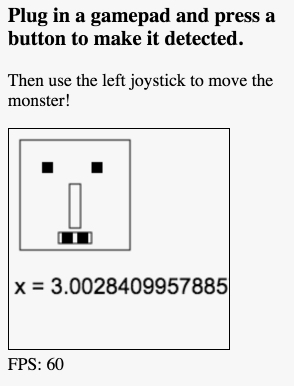
The new updated mainloop:
- var mainLoop = function(time){
- //main function, called each frame
- measureFPS(time);
- // Clear the canvas
- clearCanvas();
- // gamepad
- updateGamePadStatus();
- // draw the monster
- drawMyMonster(monster.x, monster.y);
- // Check inputs and move the monster
- updateMonsterPosition();
- // Call the animation loop every 1/60th of second
- requestAnimationFrame(mainLoop);
- };
And here is the updateGamePadStatus function (the inner function calls are to gamepad utility functions detailed in the previous lesson):
- function updateGamePadStatus() {
- // get new snapshot of the gamepad properties
- scangamepads();
- // Check gamepad button states
- checkButtons(gamepad);
- // Check joysticks
- checkAxes(gamepad);
- }
The checkAxes function updates the left, right, up, down properties of the inputStates object we previously used with key events. Therefore, without changing any code in the updatePlayerPosition function, the monster moves by joystick command!
 HTML game