Measuring time between frames to achieve a constant speed on screen, even when the frame rate changes
Method 1 – Using the JavaScript Date object
Let’s modify the example from the previous lesson slightly by adding a time-based animation. Here we use the “standard JavaScript” way for measuring time, using JavaScript’s Date object:
- var time = new Date().getTime();
The getTime() method returns the number of milliseconds since midnight on January 1, 1970. This is the number of milliseconds that have elapsed during the Unix epoch (!).
There is an alternative. We could have called:
- var time = Date.now();
So, if we measure the time at the beginning of each animation loop, and store it, we can then compute the delta of times elapsed between two consecutive loops.
We then apply some simple maths to compute the number of pixels we need to move the shape to achieve a given speed (in pixels/s).
First example that uses time based animation: the bouncing square
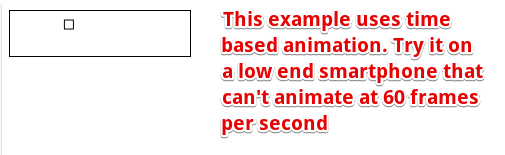
Source code from the example:
- <!DOCTYPE html>
- <html lang=“en”>
- <head>
- <meta charset=utf-8 />
- <title>Move rectangle using time based animation</title>
- var canvas, ctx;
- var width, height;
- var x, y, incX; // incX is the distance from the previously drawn
- // rectangle to the new one
- var speedX; // speedX is the target speed of the rectangle, in pixels/s
- // for time based animation
- var now, delta;
- var then = new Date().getTime();
- // Called after the DOM is ready (page loaded)
- function init() {
- // Init the different variables
- canvas = document.querySelector(“#mycanvas”);
- ctx = canvas.getContext(‘2d’);
- width = canvas.width;
- height = canvas.height;
- x=10; y = 10;
- // Target speed in pixels/second, try with high values, 1000, 2000…
- speedX = 200;
- // Start animation
- animationLoop();
- }
- function animationLoop() {
- // Measure time
- now = new Date().getTime();
- // How long between the current frame and the previous one?
- delta = now – then;
- //console.log(delta);
- // Compute the displacement in x (in pixels) in function of the time elapsed and
- // in function of the wanted speed
- incX = calcDistanceToMove(delta, speedX);
- // an animation involves: 1) clear canvas and 2) draw shapes,
- // 3) move shapes, 4) recall the loop with requestAnimationFrame
- // clear canvas
- ctx.clearRect(0, 0, width, height);
- ctx.strokeRect(x, y, 10, 10);
- // move rectangle
- x += incX;
- // check collision on left or right
- if((x+10 >= width) || (x 0)) {
- // cancel move + inverse speed
- x -= incX;
- speedX = –speedX;
- }
- // Store time
- then = now;
- requestAnimationFrame(animationLoop);
- }
- // We want the rectangle to move at a speed given in pixels/second
- // (there are 60 frames in a second)
- // If we are really running at 60 frames/s, the delay between
- // frames should be 1/60
- // = 16.66 ms, so the number of pixels to move = (speed * del)/1000.
- // If the delay is twice as
- // long, the formula works: let’s move the rectangle for twice as long!
- var calcDistanceToMove = function(delta, speed) {
- return (speed * delta) / 1000;
- }
- </head>
- <body onload=“init();“>
- <canvas id=“mycanvas” width=“200” height=“50” style=“border: 2px solid black“></canvas>
- </body>
- </html>
In this example, we only added a few lines of code for measuring the time and computing the time elapsed between two consecutive frames (see line 38). Normally, requestAnimationFrame(callback) tries to call the callback function every 16.66 ms (this corresponds to 60 frames/s)… but this is never exactly the case. If you do a console.log(delta)in the animation loop, you will see that even on a very powerful computer, the delta is “very close” to 16.6666 ms, but 99% of the time it will be slightly different.
The function calcDistanceToMove(delta, speed) takes two parameters: 1) the time elapsed in ms, and 2) the target speed in pixels/s.
Try this example on a smartphone, use this link: https://jsbin.com/jeribi to run the JSBin example in stand-alone mode. Normally you should see no difference in speed, but it may look a bit jerky on a low-end smartphone or on a slow computer. This is the correct behavior.
Or you can try the next example that simulates a complex animation loop that takes a long time to draw each frame…
A simulation that spends a lot of time in the animation loop, to compare with the previous example
We added a long loop in the middle of the animation loop. This time, the animation should be very jerky. However, notice that the apparent speed of the square is the same as in the previous example: the animation adapts itself!
- function animationLoop() {
- // Measure time
- now = new Date().getTime();
- // How long between the current frame and the previous one ?
- delta = now – then;
- //console.log(delta);
- // Compute the displacement in x (in pixels) in function of the time elapsed and
- // in function of the wanted speed
- incX = calcDistanceToMove(delta, speedX);
- // an animation is : 1) clear canvas and 2) draw shapes,
- // 3) move shapes, 4) recall the loop with requestAnimationFrame
- // clear canvas
- ctx.clearRect(0, 0, width, height);
- for(var i = 0; i < 50000000; i++) {
- // just to slow down the animation
- }
- ctx.strokeRect(x, y, 10, 10);
- // move rectangle
- x += incX;
- // check collision on left or right
- if((x+10 >= width) || (x <= 0)) {
- // cancel move + inverse speed
- x -= incX;
- speedX = –speedX;
- }
- // Store time
- then = now;
- requestAnimationFrame(animationLoop);
- }
Method 2 – USING THE NEW HTML5 HIGH-RESOLUTION TIMER
Since the beginning of HTML5, game developers, musicians, and others have asked for a sub-millisecond timer to be able to avoid some glitches that occur with the regular JavaScript timer. This API is called the “High Resolution Time API”.
This API is very simple to use – just do:
- var time = performance.now();
… to get a sub-millisecond time-stamp. It is similar to Date.now() except that the accuracy is much higher and that the result is not exactly the same. The value returned is a floating point number, not an integer value!
From this article that explains the High Resolution Time API: “The only method exposed is now(), which returns a DOMHighResTimeStamp representing the current time in milliseconds. The timestamp is very accurate, with precision to a thousandth of a millisecond. Please note that while Date.now() returns the number of milliseconds elapsed since 1 January 1970 00:00:00 UTC, performance.now() returns the number of milliseconds, with microseconds in the fractional part, from performance.timing.navigationStart(), the start of navigation of the document, to the performance.now() call. Another important difference between Date.now() and performance.now() is that the latter is monotonically increasing, so the difference between two calls will never be negative.“
To sum up:
- performance.now() returns the time since the load of the document (it is called a DOMHighResTimeStamp), with a sub mill-secondaccuracy, as a floating point value, with very high accuracy.
- Date.now() returns the number of mill-seconds since the Unix epoch, as an integer value.
Support for this API is good as of October 2017 (check an up to date version) :

Source code of the example:
- …
- …
- var speedX; // speedX is the target speed of the rectangle in pixels/s
- // for time based animation
- var now, delta;
- // High resolution timer
- var then = performance.now();
- // Called after the DOM is ready (page loaded)
- function init() {
- …
- }
- function animationLoop() {
- // Measure time, with high resolution timer
- now = performance.now();
- // How long between the current frame and the previous one?
- delta = now – then;
- //console.log(delta);
- // Compute the displacement in x (in pixels) in function
- // of the time elapsed and
- // in function of the wanted speed
- incX = calcDistanceToMove(delta, speedX);
- //console.log(“dist = ” + incX);
- // an animation involves: 1) clear canvas and 2) draw shapes,
- // 3) move shapes, 4) recall the loop with requestAnimationFrame
- // clear canvas
- ctx.clearRect(0, 0, width, height);
- ctx.strokeRect(x, y, 10, 10);
- // move rectangle
- x += incX;
- // check collision on left or right
- if((x+10 >= width) || (x 0)) {
- // cancel move + inverse speed
- x -= incX;
- speedX = –speedX;
- }
- // Store time
- then = now;
- // call the animation loop again
- requestAnimationFrame(animationLoop);
- }
- …
- script>
Only two lines have changed but the accuracy is much higher, if you uncomment the console.log(…) calls in the main loop. You will see the difference.
Method 3 – using the optional timestamp parameter of the callback function of requestAnimationFrame
This is the recommended method!
There is an optional parameter that is passed to the callback function called by requestAnimationFrame: a timestamp!
The requestAnimationFrame API specification says that this timestamp corresponds to the time elapsed since the page has been loaded.
It is similar to the value sent by the high resolution timer using performance.now().
Here is a running example of the animated rectangle, that uses this timestamp parameter.
Source code of the example:
- lang=“en”>
- charset=utf-8 />
- Time based animation using the parameter of the requestAnimationFrame callback
- var canvas, ctx;
- var width, height;
- var x, y, incX; // incX is the distance from the previously drawn rectangle
- // to the new one
- var speedX; // speedX is the target speed of the rectangle in pixels/s
- // for time based animation
- var now, delta=0;
- // High resolution timer
- var oldTime = 0;
- // Called after the DOM is ready (page loaded)
- function init() {
- // init the different variables
- canvas = document.querySelector(“#mycanvas”);
- ctx = canvas.getContext(‘2d’);
- width = canvas.width;
- height = canvas.height;
- x=10; y = 10;
- // Target speed in pixels/second, try with high values, 1000, 2000…
- speedX = 200;
- // Start animation
- requestAnimationFrame(animationLoop);
- }
- function animationLoop(currentTime) {
- // How long between the current frame and the previous one?
- delta = currentTime – oldTime;
- // Compute the displacement in x (in pixels) in function of the time elapsed and
- // in function of the wanted speed
- incX = calcDistanceToMove(delta, speedX);
- // clear canvas
- ctx.clearRect(0, 0, width, height);
- ctx.strokeRect(x, y, 10, 10);
- // move rectangle
- x += incX;
- // check collision on left or right
- if(((x+10) > width) || (x 0)) {
- // inverse speed
- x -= incX;
- speedX = –speedX;
- }
- // Store time
- oldTime = currentTime;
- // asks for next frame
- requestAnimationFrame(animationLoop);
- }
- var calcDistanceToMove = function(delta, speed) {
- return (speed * delta) / 1000;
- }
- </head>
- <body onload=“init();“>
- <canvas id=“mycanvas” width=“200” height=“50” style=“border: 2px solid black“></canvas>
- </body>
- </html>
 HTML game