Dealing with gamepad events
Introduction
Some games, mainly arcade/action games, are designed to be used with a gamepad:
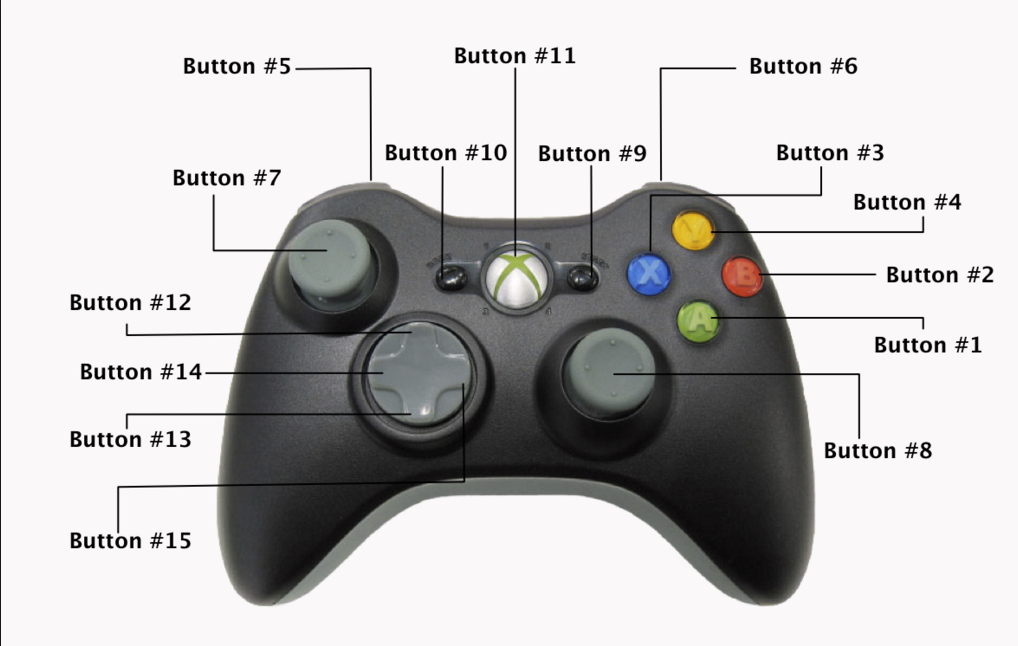
The Gamepad API is currently (as at September 2017) supported by all major browsers (including Microsoft Edge), except Safari and Internet Explorer. Note that the API is still a draft and may change in the future (though it has changed very little since 2012). We recommend using a Wired Xbox 360 Controller or a PS2 controller, both of which should work out of the box on Windows XP, Windows Vista, Windows, and Linux desktop distributions. Wireless controllers are supposed to work too, but we haven’t tested the API with them. You may find someone who has managed but they’ve probably needed to install an operating system driver to make it work.
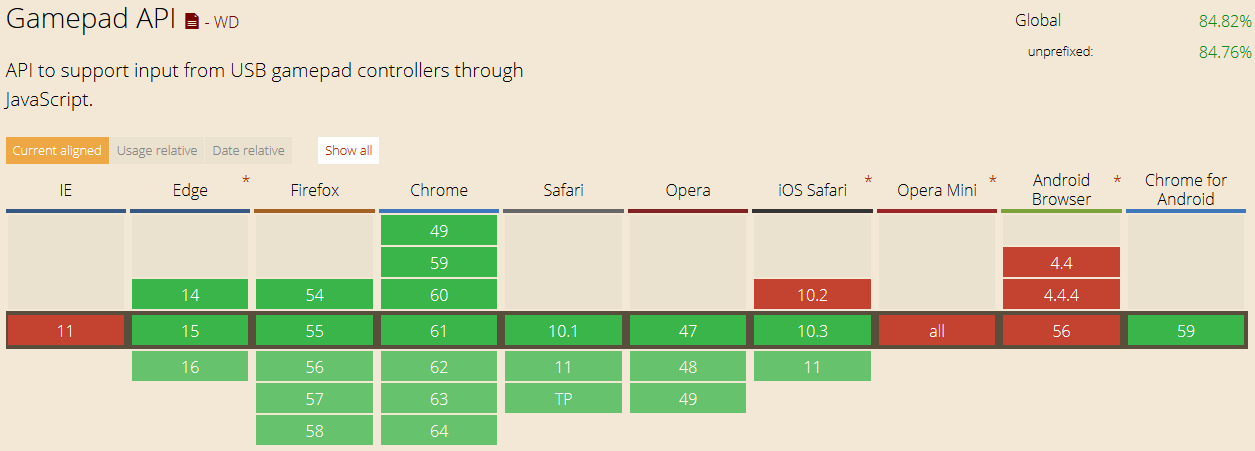
See the up to date version of this table.
Detecting gamepads
Events triggered when the gamepad is plugged in or unplugged
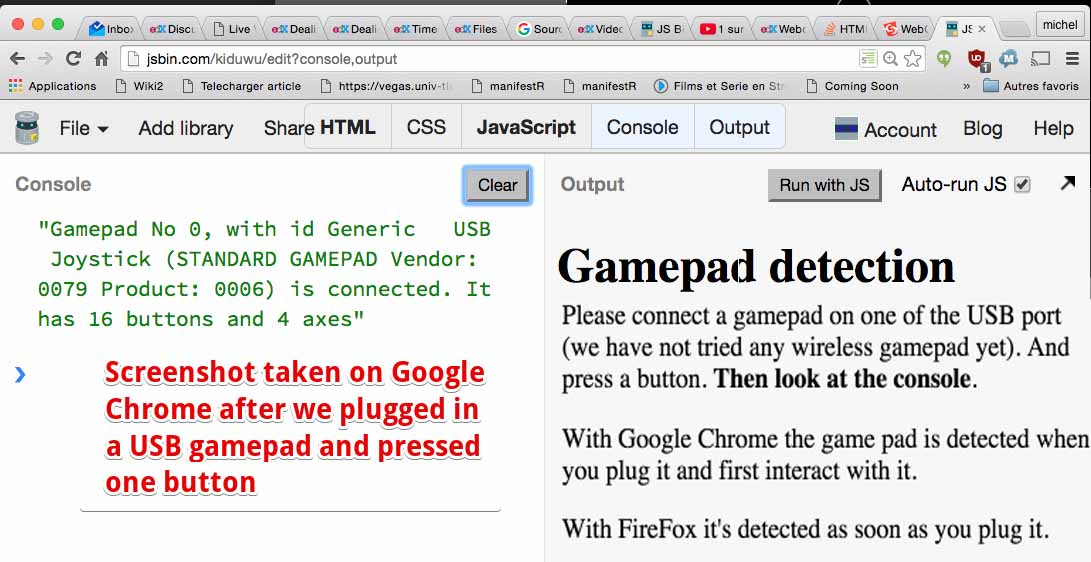
Let’s start with a ‘discovery’ script to check that the GamePad is connected, and to see the range of facilities it can offer to JavaScript.
If the user interacts with a controller (presses a button, moves a stick) a gamepadconnected event will be sent to the page. NB the page must be visible! The event object passed to the gamepadconnected listener has a gamepad property which describes the connected device.
- window.addEventListener(“gamepadconnected”, function(e) {
- var gamepad = e.gamepad;
- var index = gamepad.index;
- var id = gamepad.id;
- var nbButtons = gamepad.buttons.length;
- var nbAxes = gamepad.axes.length;
- console.log(“Gamepad No “ + index +
- “, with id “ + id + ” is connected. It has “ +
- nbButtons + ” buttons and “ +
- nbAxes + ” axes”);
- });
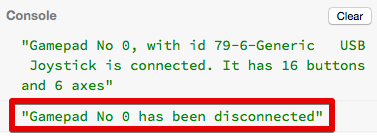
If a gamepad is disconnected (you unplug it), a gamepaddisconnected event is fired. Any references to the gamepad object will have their connected property set to false.
- window.addEventListener(“gamepaddisconnected”, function(e) {
- var gamepad = e.gamepad;
- var index = gamepad.index;
- console.log(“Gamepad No “ + index + ” has been disconnected”);
- });
Scanning for gamepads
If you reload the page, and if the gamepad has already been detected by the browser, it will not fire the gamepadconnected event again. This can be problematic if you use a global variable for managing the gamepad, or an array of gamepads in your code. As the event is not fired, these variables will stay undefined…
So, you need to regularly scan for gamepads available on the system. You should still use that event listener if you want to do something special when the system detects that a gamepad has been unplugged.
Here is the code to use to scan for a gamepad:
- var gamepad;
- function mainloop() {
- …
- scangamepads();
- // test gamepad status: buttons, joysticks etc.
- …
- requestAnimationFrame(mainloop);
- }
- function scangamepads() {
- // function called 60 times/s
- // the gamepad is a “snapshot”, so we need to set it
- // 60 times / second in order to have an updated status
- var gamepads = navigator.getGamepads();
- for (var i = 0; i < gamepads.length; i++) {
- // current gamepad is not necessarily the first
- if(gamepads[i] !== undefined)
- gamepad = gamepads[i];
- }
- }
In this code, we check every 1/60 second for newly or re-connected gamepads, and we update the gamepad global var with the first gamepad object returned by the browser. We need to do this so that we have an accurate “snapshot” of the gamepad state, with fixed values for the buttons, axes, etc. If we want to check the current button and joystick statuses, we must poll the browser at a high frequency and call for an updated snapshot.
From the specification: “getGamepads retrieves a snapshot of the data for the currently connected and interacted-with gamepads.”
This code will be integrated (as well as the event listeners presented earlier) in the next JSBin examples.
To keep things simple, the above code works with a single gamepad – here’s a good example of managing multiple gamepads.
Detecting button status and axes values (joysticks)
Properties of the gamepad object
The gamepad object returned in the event listener has different properties:
- id: a string indicating the id of the gamepad. Useful with the mapping property below.
- index: an integer used to distinguish multiple controllers (gamepad 1, gamepad 2, etc.).
- connected: true if the controller is still connected, false if it has been disconnected.
- mapping: not implemented yet by most browsers. It will allow the controllers of the gamepad to be remapped. A layout map is associated with the id of the gamepad. By default, and before they implement support for different mapping, all connected gamepads use a standard default layout.
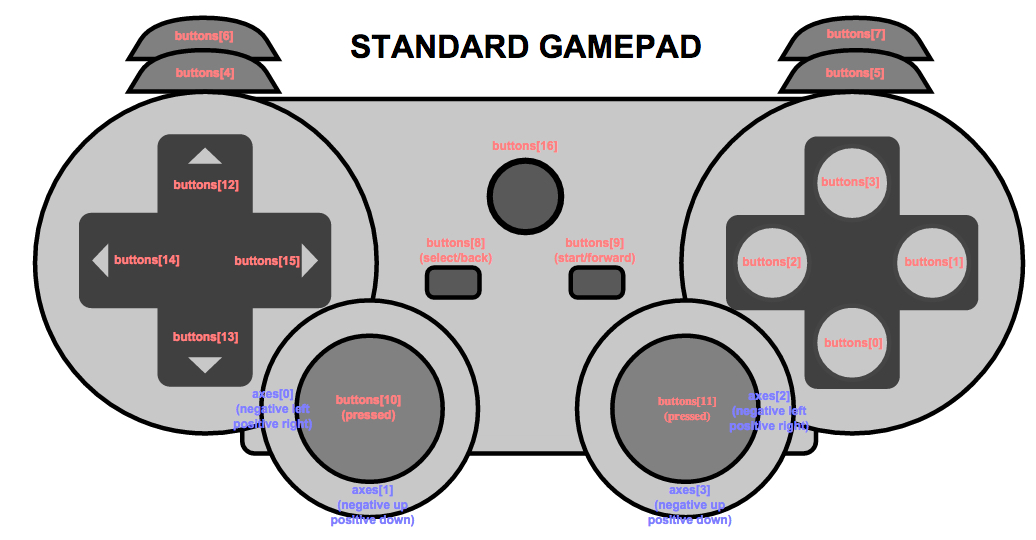
Click the above image to open a large view in another window/tab.
- axes: an array of floating point values containing the state of each axis on the device. Usually these represent the analog sticks, with a pair of axes giving the position of the stick in its X and Y axes. Each axis is normalized to the range of -1.0…1.0, with -1.0 representing the up or left-most position of the axis, and 1.0 representing the down or right-most position of the axis.
- buttons: an array of GamepadButton objects containing the state of each button on the device. Each GamepadButton has a pressed and avalue property.
- The pressed property is a Boolean property indicating whether the button is currently pressed (true) or unpressed (false).
- The value property is a floating point value used to enable representing analog buttons, such as the triggers, on many modern gamepads. The values are normalized to the range 0.0…1.0, with 0.0 representing a button that is not pressed, and 1.0 representing a button that is fully depressed.
Detecting whether a button is pressed
Digital, on/off buttons evaluate to either one or zero (respectively). Whereas analog buttons will return a floating-point value between zero and one.
Example on JSBin. You might also give a look at at this demo that does the same thing but with multiple gamepads.
Code for checking if a button is pressed:
- function checkButtons(gamepad) {
- for (var i = 0; i < gamepad.buttons.length; i++) {
- // do nothing is the gamepad is not ok
- if(gamepad === undefined) return;
- if(!gamepad.connected) return;
- var b = gamepad.buttons[i];
- if(b.pressed) {
- console.log(“Button “ + i + ” is pressed.”);
- if(b.value !== undefined)
- // analog trigger L2 or R2, value is a float in [0, 1]
- console.log(“Its value:” + b.val);
- }
- }
- }
In line 11, notice how we detect whether the current button is an analog trigger (L2 or R2 on Xbox360 or PS2/PS3 gamepads).
Next, we’ll integrate it into the mainloop code. Note that we also need to call the scangamepads function from the loop, to generate fresh “snapshots” of the gamepad with updated properties. Without this call, the gamepad.buttons will return the same states every time.
- function mainloop() {
- // clear, draw objects, etc…
- …
- scangamepads();
- // Check gamepad button states
- checkButtons(gamepad);
- // animate at 60 frames/s
- requestAnimationFrame(mainloop);
- }
Detecting axes (joystick) values
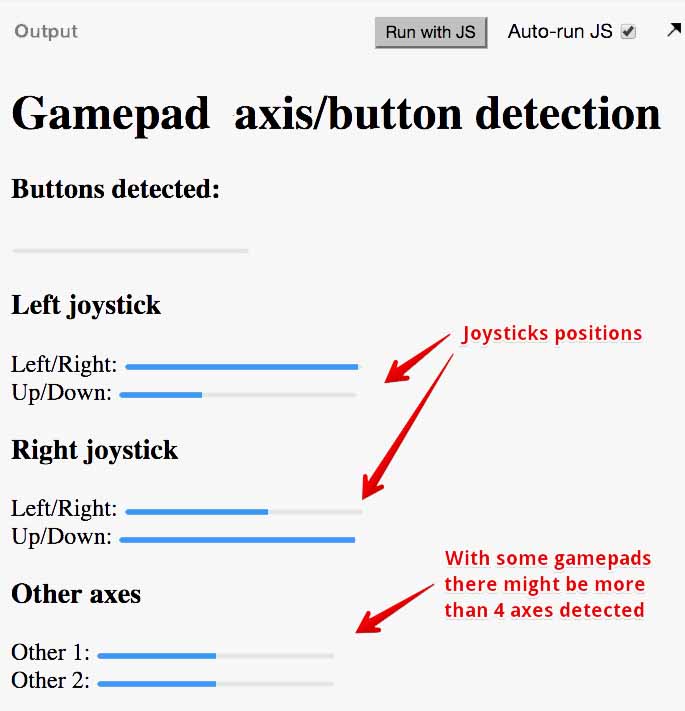
Code for detecting the axes’ values:
- // detect axis (joystick states)
- function checkAxes(gamepad) {
- if(gamepad === undefined) return;
- if(!gamepad.connected) return;
- for (var i=0; i<gamepad.axes.length; i++) {
- var axisValue = gamepad.axes[i];
- // do something with the value
- …
- }
- }
Detecting the direction (left, right, up, down, diagonals) and angle of the left joystick
We could add an inputStates object similar to the one we used in the game framework, and check its values in the mainloop to decide whether to move the player up/down/left/right, including diagonals – or maybe we’d prefer to use the current angle of the joystick. Here is how we manage this:
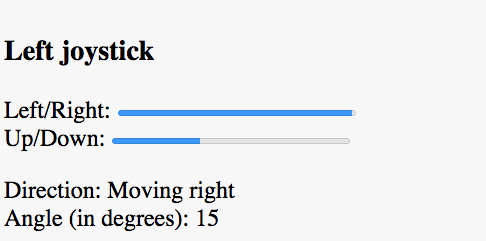
Source code extract:
- var inputStates = {};
- …
- function mainloop() {
- // clear, draw objects, etc…
- // update gamepad status
- scangamepads();
- // Check gamepad button states
- checkButtons(gamepad);
- // Check joysticks states
- checkAxes(gamepad);
- // Move the player, taking into account
- // the gamepad left joystick state
- updatePlayerPosition();
- // We could use the same technique in
- // order to react when buttons are pressed
- //…
- // animate at 60 frames/s
- requestAnimationFrame(mainloop);
- }
- function updatePlayerPosition() {
- directionDiv.innerHTML += “”;
- if(inputStates.left) {
- directionDiv.innerHTML = “Moving left”;
- }
- if(inputStates.right) {
- directionDiv.innerHTML = “Moving right”;
- }
- if(inputStates.up) {
- directionDiv.innerHTML = “Moving up”;
- }
- if(inputStates.down) {
- directionDiv.innerHTML = “Moving down”;
- }
- // Display the angle in degrees, in the HTML page
- angleDiv.innerHTML = Math.round((inputStates.angle*180/Math.PI));
- }
- // gamepad code below
- // ————————-
- // detect axis (joystick states)
- function checkAxes(gamepad) {
- if(gamepad === undefined) return;
- if(!gamepad.connected) return;
- …
- // Set inputStates.left, right, up, down
- inputStates.left = inputStates.right = inputStates.up = inputStates.down = false;
- // all values between [-1 and 1]
- // Horizontal detection
- if(gamepad.axes[0] > 0.5) {
- inputStates.right=true;
- inputStates.left=false;
- } else if(gamepad.axes[0] < –0.5) {
- inputStates.left=true;
- inputStates.right=false;
- }
- // vertical detection
- if(gamepad.axes[1] > 0.5) {
- inputStates.down=true;
- inputStates.up=false;
- } else if(gamepad.axes[1] < –0.5) {
- inputStates.up=true;
- inputStates.down=false;
- }
- // compute the angle. gamepad.axes[1] is the
- // sinus of the angle (values between [-1, 1]),
- // gamepad.axes[0] is the cosinus of the angle.
- // we display the value in degree as in a regular
- // trigonometric circle, with the x axis to the right
- // and the y axis that goes up.
- // The angle = arcTan(sin/cos); We inverse the sign of
- // the sinus in order to have the angle in standard
- // x and y axis (y going up)
- inputStates.angle = Math.atan2(-gamepad.axes[1], gamepad.axes[0]);
- }
Other gamepads and joysticks tested
Logitech Attack 3 Joystick on Linux
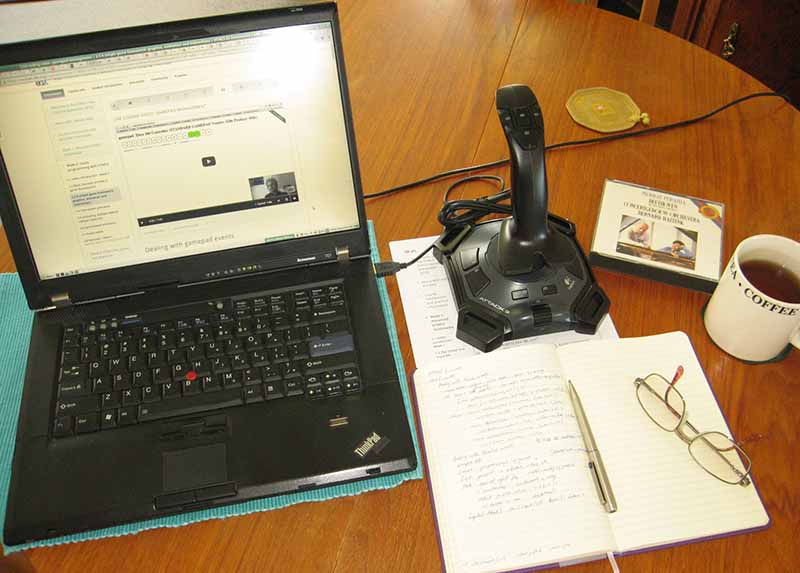
Hi (=dn reports): Have successfully installed a Logitech Attack 3 joy-stick on my Thinkpad running Linux Mint 17.1. It runs all of the code presented here correctly, reporting 11 buttons and 3 axes (the knurled rotating knob (closest to my pen) is described as a ‘throttle’ or ‘accelerator’)).
Traditionally Linux has been described as ‘for work only’ or ‘no games’, so it was a pleasant surprise to see how easy things were – no “driver” to install (it seems important to uninstall any existing connection between a device and the x-server), installed “joystick” testing and calibration tool, and the “jstest-gtk” configuration and testing tool; and that was ‘it’ – no actual configuration was necessary!
Wireless Microsoft gamepad
Hi! (Michel Buffa reports) I managed to test a wireless Microsoft gamepad on a PC windows 8.1 and it worked with Chrome/FF. I did not try with a console version of the wireless gamepad, I tried with a version for PC, that comes with a wireless receiver (see pictures and video)
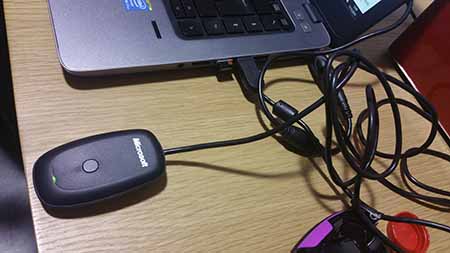
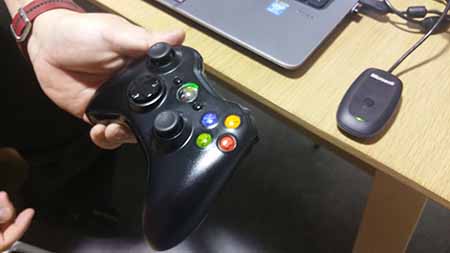
Video of this gamepad with Windows 8.1 + FireFox
External resources
- THE BEST resource (December 2015): this paper from smashingmagazine.com tells you everything about the GamePad API. Very complete, explains how to set a dead zone, a keyboard fallback, etc.
- Good article about using the gamepad API on the Mozilla Developer Network site
- An interesting article on the gamepad support, published on the HTML5 Rocks Web site
- gamepad.js is a Javascript library to enable the use of gamepads and joysticks in the browser. It smoothes over the differences between browsers, platforms, APIs, and a wide variety of gamepad/joystick devices.
- Another library we used in our team for controlling a mobile robot (good support from the authors)
- Gamepad Controls for HTML5 Games
 HTML game