Dealing with key events
Reminders from the HTML5 part 1 course
This has been something of a nightmare for years, as different browsers had different ways of handling key events and key codes (read this if you are fond of JavaScript archaeology). Fortunately, it’s much improved today and we can rely on methods that should work in any browser less than four years old.
After a keyboard-related event (eg keydown or keyup), the code of the key that fired the event will be passed to the listener function. It is possible to test which key has been pressed or released, like this:
- window.addEventListener(‘keydown’, function(event) {
- if (event.keyCode === 37) {
- // Left arrow was pressed
- }
- }, false);
At line 2, the key code of 37 corresponds to the left arrow key.
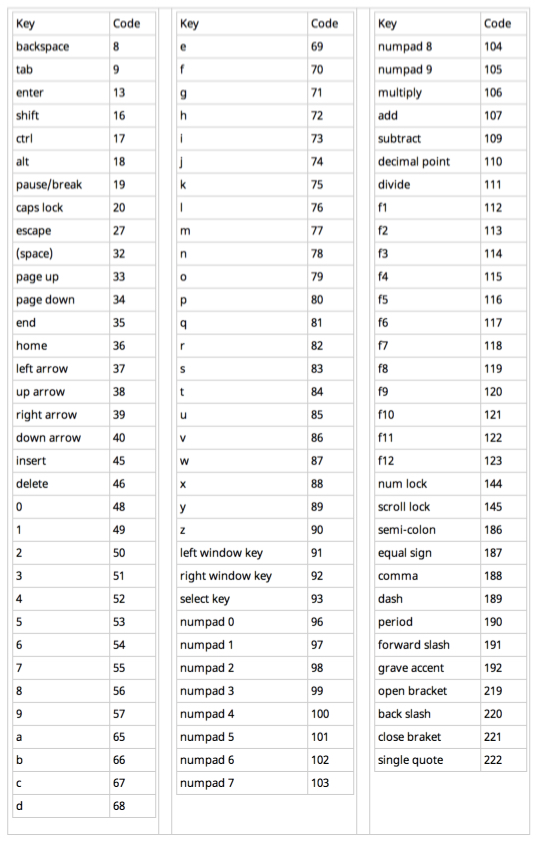
You can try key codes with this interactive example, and here is a list of keyCodes (from CSS Tricks):
Game requirements: managing multiple keypress / keyrelease events
In a game, we often need to check which keys are being used, at a very high frequency – typically from inside the game loop that is looping at up to 60 times per second.
If a spaceship is moving left, chances are you are keeping the left arrow down, and if it’s firing missiles at the same time you must also be pressing the space bar like a maniac, and maybe pressing the shift key to release smart bombs.
Sometimes these three keys might be down at the same time, and the game loop will have to take these three keys into account: move the ship left, release a new missile if the previous one is out of the screen or if it reached a target, launch a smart bomb if conditions are met, etc.
Keep the list of pertinent keys in a javascript object
The typical method used is: store the list of the keys (or mouse button or whatever game pad button…) that are up or down at a given time in a JavaScript object. For our small game engine we will call this object “inputStates“.
We will update its content inside the different input event listeners, and later check its values inside the game loop to make the game react accordingly.
Add this to our game framework:
So, these are the changes to our small game engine prototype (which is far from finished yet):
- We add an empty inputStates object as a global property of the game engine,
- In the start() method, we add event listeners for each keydown and keyup event which controls the game.
- In each listener, we test if an arrow key or the space bar has been pressed or released, and we set the properties of the inputStates object accordingly. For example, if the space bar is pressed, we set inputStates.space=true; but if it’s released, we reset to inputStates.space=false.
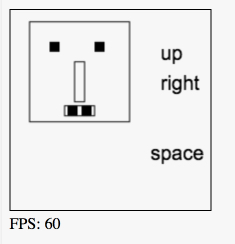
- In the main loop (to prove everything is working), we add tests to check which keys are down; and if a key is down, we print its name on the canvas.
Here is the online example you can try at JSBin
And here is the complete source code:
- // Inits
- window.onload = function init() {
- var game = new GF();
- game.start();
- };
- // GAME FRAMEWORK STARTS HERE
- var GF = function(){
- …
- // vars for handling inputs
- var inputStates = {};
- var measureFPS = function(newTime){
- …
- };
- // Clears the canvas content
- function clearCanvas() {
- ctx.clearRect(0, 0, w, h);
- }
- // Functions for drawing the monster and perhaps other objects
- function drawMyMonster(x, y) {
- …
- }
- var mainLoop = function(time){
- // Main function, called each frame
- measureFPS(time);
- // Clears the canvas
- clearCanvas();
- // Draws the monster
- drawMyMonster(10+Math.random()*10, 10+Math.random()*10);
- // check inputStates
- if (inputStates.left) {
- ctx.fillText(“left”, 150, 20);
- }
- if (inputStates.up) {
- ctx.fillText(“up”, 150, 50);
- }
- if (inputStates.right) {
- ctx.fillText(“right”, 150, 80);
- }
- if (inputStates.down) {
- ctx.fillText(“down”, 150, 120);
- }
- if (inputStates.space) {
- ctx.fillText(“space bar”, 140, 150);
- }
- // Calls the animation loop every 1/60th of second
- requestAnimationFrame(mainLoop);
- };
- var start = function(){
- …
- // Important, we will draw with this object
- ctx = canvas.getContext(‘2d’);
- // Default police for text
- ctx.font=“20px Arial”;
- // Add the listener to the main, window object, and update the states
- window.addEventListener(‘keydown’, function(event){
- if (event.keyCode === 37) {
- inputStates.left = true;
- } else if (event.keyCode === 38) {
- inputStates.up = true;
- } else if (event.keyCode === 39) {
- inputStates.right = true;
- } else if (event.keyCode === 40) {
- inputStates.down = true;
- } else if (event.keyCode === 32) {
- inputStates.space = true;
- }
- }, false);
- // If the key is released, change the states object
- window.addEventListener(‘keyup’, function(event){
- if (event.keyCode === 37) {
- inputStates.left = false;
- } else if (event.keyCode === 38) {
- inputStates.up = false;
- } else if (event.keyCode === 39) {
- inputStates.right = false;
- } else if (event.keyCode === 40) {
- inputStates.down = false;
- } else if (event.keyCode === 32) {
- inputStates.space = false;
- }
- }, false);
- // Starts the animation
- requestAnimationFrame(mainLoop);
- };
- // our GameFramework returns a public API visible from outside its scope
- return {
- start: start
- };
- };
You may notice that on some computers / operating systems, it is not possible to simultaneously press the up and down arrow keys, or left and right arrow keys, because they are mutually exclusive. However space + up + right should work in combination.
 HTML game