Another view of the track: the TEXTTRACK JavaScript object
The object that contains the cues (subtitles or captions or chapter description from the WebVTT file) is not the HTML track itself;
it is another object that is associated with it: a TextTrack object!
The TextTrack object has different methods and properties for manipulating track content, and is associated with different events. But before going into detail, let’s see how to obtain a TextTrack object.
Obtaining a TextTrack object that corresponds to an HTML track
First method: get a TextTrack from its associated HTML track
The HTML track element has a track property which returns the associated TextTrack object. Example source code:
- // HTML tracks
- var htmlTracks = document.querySelectorAll(“track”);
- // The TextTrack object associated with the first HTML track
- var textTrack = htmlTracks[0].track;
- var kind = textTrack.kind;
- var label = textTrack.label;
- var lang = textTrack.language;
- // etc.
Notice that once we get a TextTrack object, we can manipulate the kind, label, language attributes (be careful, it’s not srclang, like the equivalent attribute name for HTML tracks). Other attributes and methods are described later in this lesson.
Second method: get TextTrack from the HTML video element
The <video> element (<audio> element too) has a TextTrack property accessible from JavaScript:
- var videoElement = document.querySelector(“#myVideo”);
- var textTracks = videoElement.textTracks; // one TextTrack for each HTML track element
- var textTrack = textTracks[0]; // corresponds to the first track element
- var kind = textTrack.kind // e.g. “subtitles”
- var mode = textTrack.mode // e.g. “disabled”, “hidden” or “showing”
The mode property of TextTrack objects
TextTrack objects have a mode property, that will be set to one of:
- “showing”: the track is either already loaded, or is being loaded by the browser. As soon as it is completely loaded, subtitles or captions will be displayed in the video. Other kinds of track will be loaded but will not necessarily show anything visible in the document. All tracks that have mode=”showing” will fire events while the video is being played.
- “hidden”: the track is either already loaded, or is being loaded by the browser. All tracks that have mode=”hidden” will fire events while the video is being played. Nothing will be visible in the standard video player GUI.
- “disabled”: this is the mode where tracks are not being loaded. If a loaded track has its mode set to “disabled”, it will stop firing events, and if it was in mode=”showing” the subtitles or captions will stop being displayed in the video player.
TextTrack content can only be accessed if a track has been loaded! Use the mode property to force a track TO BE LOADED!
BE CAREFUL: you cannot access a TextTrack content if the corresponding HTML track has not been loaded by the browser!
It is possible to force a track to be loaded by setting the mode property of the TextTrack object to “showing” or “hidden”.
Tracks that are not loaded have their mode property of “disabled”.
Here is an example that will test if a track has been loaded, and if it hasn’t, will force it to be loaded by setting its mode to “hidden”. We could have used “showing”; in this case, if the file is a subtitle or a caption file, then the subtitles or captions will be displayed on the video as soon as the track has finished loading.
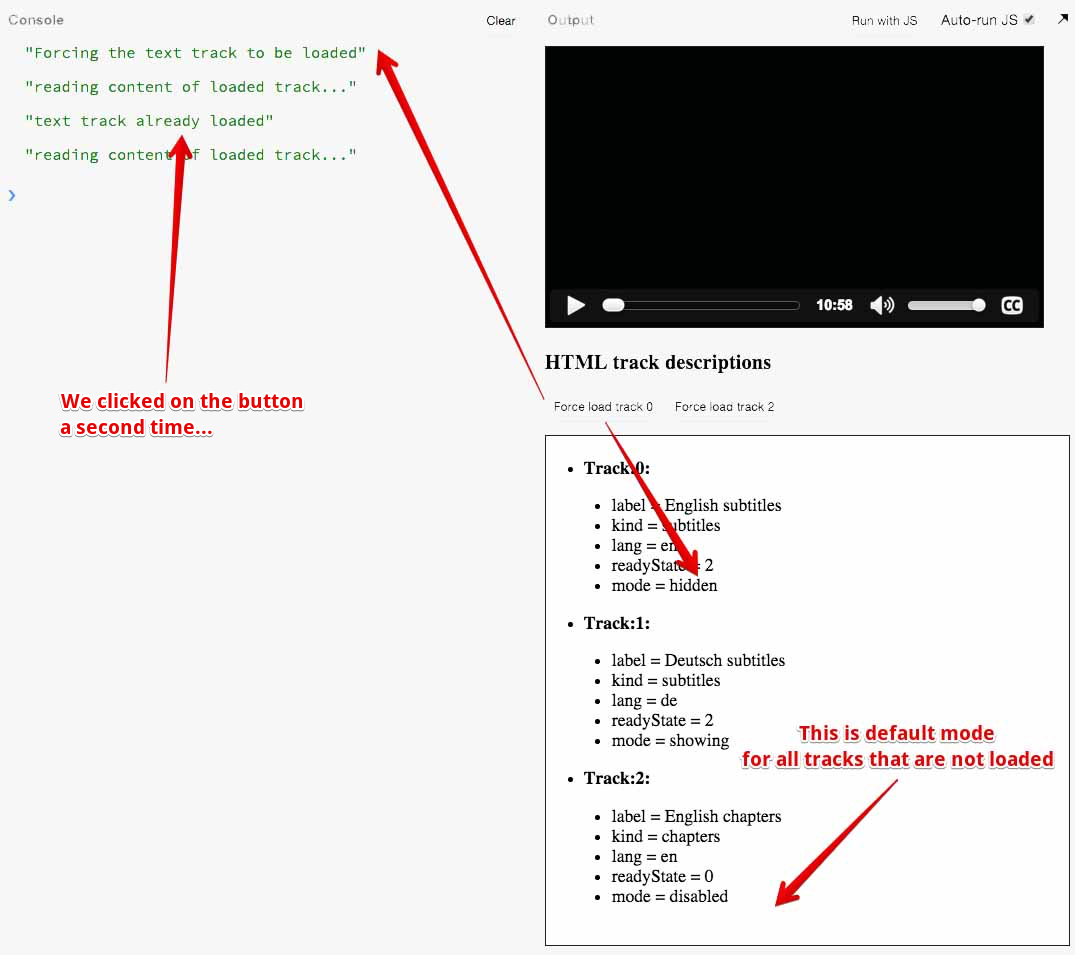
Here is what we added to the HTML code:
- <button id=”buttonLoadFirstTrack”
- onclick=”forceLoadTrack(0);”
- disabled>
- Force load track 0
- </button>
- <button id=”buttonLoadThirdTrack”
- onclick=”forceLoadTrack(2);”
- disabled>
- Force load track 2
- </button>
- <button id=”buttonLoadFirstTrack”
- onclick=”forceLoadTrack(0);”
- disabled>
- Force load track 0
- </button>
- <button id=”buttonLoadThirdTrack”
- onclick=”forceLoadTrack(2);”
- disabled>
- Force load track 2
- </button>
The buttons will call a function named forceLoadTrack(trackNumber) that takes as a parameter the number of the track to get (and force load if necessary).
Here are the additions we made to the JavaScript code of the previous example:
See the Pen GzyKqw by Nguyễn Văn An (@nguyn-vn-an) on CodePen.
https://static.codepen.io/assets/embed/ei.jsExplanations:
- Lines 26-31: the function called when a button has been clicked. This function in turn calls the getTrack(trackNumber, callback) function. It passes the readContent callback function as a parameter. This is typical JavaScript asynchronous programming: the getTrack() function may force the browser to load the track and this can take some time (a few seconds), then when the track has downloaded, we ask the getTrack function to call the function we passed (the readContent function, which is known as a callback function), with the loaded track as a parameter.
- Line 6: the getTrack function. It first checks if the HTML track is already loaded (line 10). If it is, it calls the callback function passed by the caller, with the loaded TextTrack as a parameter. If the TextTrack is not loaded, then it sets its mode to “hidden”. This will instruct the browser to load the track. Because that may take some time, we must use a load event listener on the HTML track before calling the callback function. This allows us to be sure that the track is really completely loaded.
- Lines 1-4: the readContent function is only called with a loaded TextTrack. Here we do nothing special for the moment except that we refresh the different track statuses in the HTML document.
 HTML game