Instead of using text (optionally using HTML for styling, multi lines, etc.), it is also possible to use JSON objects as cue values that can be manipulated from JavaScript. JSON means “JavaScript Object Notation”. It’s an open standard for describing JavaScript objects as plain text.
Here is an example cue from a WebVTT file encoded as JSON instead of plain text. JSON is useful for describing “structured data”‘, and processing such data from JavaScript is easier than parsing plain text.
- WEBVTT
- Wikipedia
- 00:01:15.200 –> 00:02:18.800
- {
- “title”: “State of Wikipedia”,
- “description”: “Jimmy Wales talking …”,
- “src”: “http://upload.wikimedia.org/…../120px-Wikipedia-logo-v2.svg.png”,
- “href”: “http://en.wikipedia.org/wiki/Wikipedia”
- }
This JSON object (in bold green) is a JavaScript object encoded as a text string. If we listen for cue events or if we read a WebVTT file as done in previous examples, we can extract this text content using the cue.text property. For example:
- var videoElement = document.querySelector(“#myvideo”);
- var textTracks = videoElement.textTracks; // one for each track element
- var textTrack = textTracks[0]; // corresponds to the first track element
- var cues = textTrack.cues;
- var cue = cues[0]; // first cue
- // cue.text is in JSON format, with JSON.parse we turn it back
- // to a real JavaScript object
- var obj = JSON.parse(cue.text);
- var title = obj.title; // “State of Wikipedia”
- var description = obj.description; // Jimmy Wales talking…
- etc…
This is a powerful way of embedding metadata, especially when used in conjunction with listening for cue and track events.
improved approach: make a nicer chapter menu by embedding a richer description of chapter markers
Earlier we saw an example that could display chapter markers as clickable text on the right of a video.
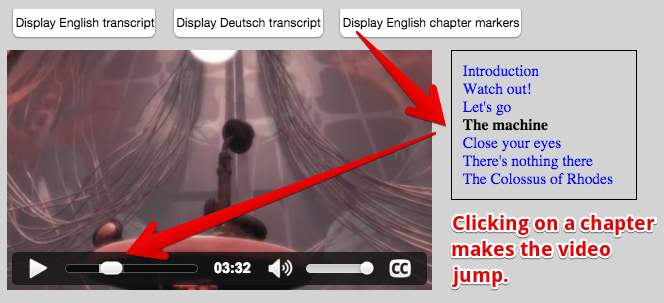
This example used only standard plain text content for the cues:
- WEBVTT
- chapter-1
- 00:00:00.000 –> 00:00:26.000
- Introduction
- chapter-2
- 00:00:28.206 –> 00:01:02.000
- Watch out!
- …
We used this example to manually capture the images from the video that correspond to each of the seven chapters:
- We clicked on each chapter link on the right, then paused the video,
- then we used a screen capture tool to grab each image that corresponds to the beginning of chapter,
- Finally, we resized the images with Photoshop to approximately 200×400 pixels.
(For advanced users: it’s possible to semi-automatize this process using the ffmepg command line tool, see for example this and that).
Here are the images which correspond to the seven chapters of the video from the previous example:
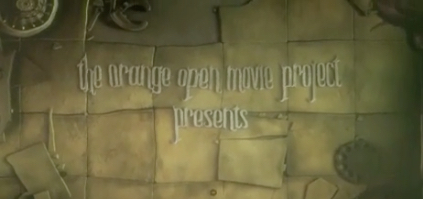
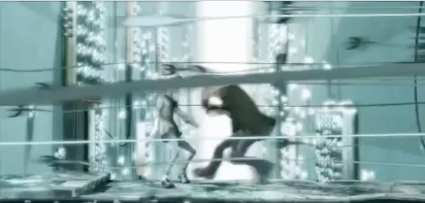
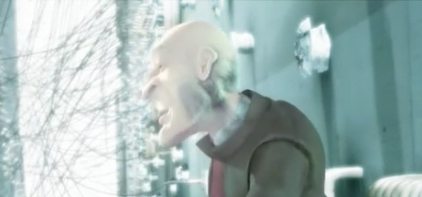
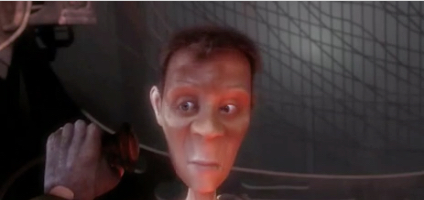
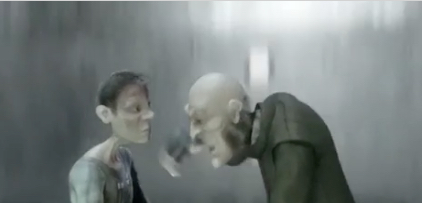
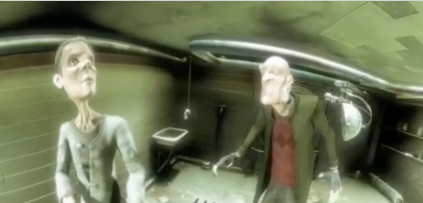
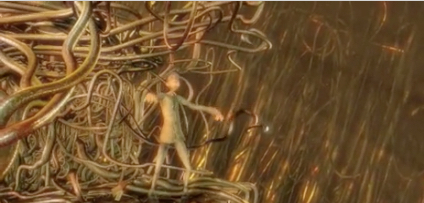
To associate these images with its chapter description, we will use JSON objects as cue contents:
elephants-dream-chapters-en-JSON.vtt:
- WEBVTT
- chapter-1
- 00:00:00.000 –> 00:00:26.000
- {
- “description”: “Introduction”,
- “image”: “introduction.jpg”
- }
- chapter-2
- 00:00:28.206 –> 00:01:02.000
- {
- “description”: “Watch out!”,
- “image”: “watchOut.jpg”
- }
- …
Before explaining the code, we propose that you try this example at JSBin that uses this new .vtt file:
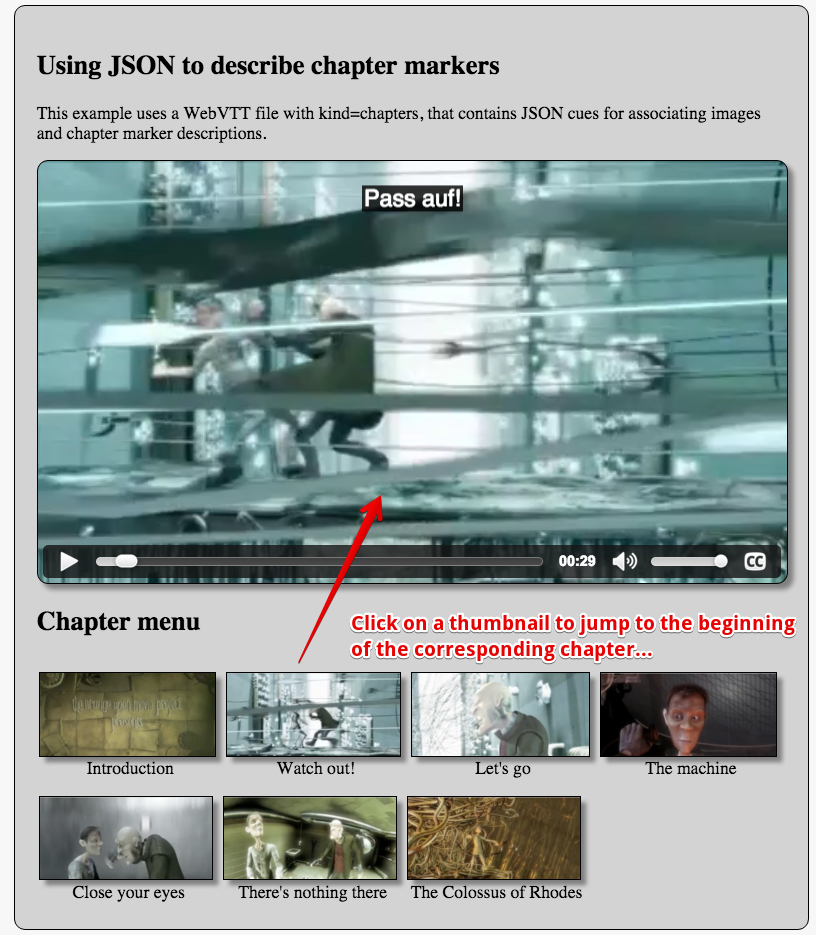
HTML code:
- …
- <video id=”myVideo” preload=”metadata” controls crossOrigin=”anonymous”>
- <source src=”https://…../elephants-dream-medium.mp4″
- type=”video/mp4″>
- <source src=”https://…../elephants-dream-medium.webm”
- type=”video/webm”>
- <track label=”English subtitles”
- kind=”subtitles”
- srclang=”en” src=”https://…../elephants-dream-subtitles-en.vtt” >
- <track label=”Deutsch subtitles”
- kind=”subtitles”
- srclang=”de” src=”https://…../elephants-dream-subtitles-de.vtt” default>
- <track label=”English chapters”
- kind=”chapters”
- srclang=”en” src=”https://…../elephants-dream-chapters-en-JSON.vtt”>
- </video>
- <h2>Chapter menu</h2>
- …
It’s the same code we had in the first example, except that this time we use a new WebVTT file that uses JSON cues to describe each chapter. For the sake of simplicity, we also removed the buttons and all the code for displaying a clickable transcript of the subtitles/captions on the right of the video.
JavaScript code:
- var video, chapterMenuDiv;
- var tracks, trackElems, tracksURLs = [];
- window.onload = function() {
- console.log(“init”);
- // When the page is loaded
- video = document.querySelector(“#myVideo”);
- chapterMenuDiv = document.querySelector(“#chapterMenu”);
- // Get the tracks as HTML elements
- trackElems = document.querySelectorAll(“track”);
- for(var i = 0; i < trackElems.length; i++) {
- var currentTrackElem = trackElems[i];
- tracksURLs[i] = currentTrackElem.src;
- }
- // Get the tracks as JS TextTrack objects
- tracks = video.textTracks;
- // Build the chapter navigation menu for the given lang and kind
- buildChapterMenu(‘en’, ‘chapters’);
- };
- function buildChapterMenu(lang, kind) {
- // Locate the track with language = lang and kind=”chapters”
- for(var i = 0; i < tracks.length; i++) {
- // current track
- var track = tracks[i];
- var trackAsHtmlElem = trackElems[i];
- if((track.language === lang) && (track.kind === kind)) {
- // the track must be active, otherwise it will not load
- track.mode=”showing”; // “hidden” would work too
- if(trackAsHtmlElem.readyState === 2) {
- // the track has already been loaded
- displayChapterMarkers(track);
- } else {
- displayChapterMarkersAfterTrackLoaded(trackAsHtmlElem, track);
- }
- }
- }
- }
- function displayChapterMarkers(track) {
- var cues = track.cues;
- // We must not see the cues on the video
- track.mode = “hidden”;
- // Iterate on cues
- for(var i=0, len = cues.length; i < len; i++) {
- var cue = cues[i];
- var cueObject = JSON.parse(cue.text);
- var description = cueObject.description;
- var imageFileName = cueObject.image;
- var imageURL = “https://mainline.i3s.unice.fr/mooc/” + imageFileName;
- // Build the marker. It’s a figure with an img and a figcaption inside.
- // The img has an onclick listener that will make the video jump
- // to the start time of the current cue/chapter
- var figure = document.createElement(‘figure’);
- figure.classList.add(“img”);
- figure.innerHTML = “<img onclick=’jumpTo(“
- + cue.startTime + “);’ class=’thumb’ src='”
- + imageURL + “‘><figcaption class=’desc’>”
- + description + “</figcaption></figure>”;
- // Add the figure to the chapterMenuDiv
- chapterMenuDiv.insertBefore(figure, null);
- }
- }
- function displayChapterMarkersAfterTrackLoaded(trackElem, track) {
- // Create a listener that will only be called when the track has
- // been loaded
- trackElem.addEventListener(‘load’, function(e) {
- console.log(“chapter track loaded”);
- displayChapterMarkers(track);
- });
- }
- function jumpTo(time) {
- video.currentTime = time;
- video.play();
- }
Explanations:
- Lines 4-18: when the page is loaded, we assemble all of the track HTML elements and their corresponding TextTrack objects.
- Line 19: using that we can build the chapter navigation menu. All is done in the window.onload callback, so nothing happens until the DOM is ready.
- Lines 24-43: the buildChapterMenu function first locates the chapter track for the given language, then checks if this track has been loaded by the browser. Once it has been confirmed that the track is loaded, the function displayChapters is called.
- Lines 45-65: the displayChapters(track) function will iterate over all of the cues within the chapter track passed as its parameter. For each cue, the JSON content is re-formatted back into a JavaScript object (line 55) and the image filename and description of the chapter/cue are extracted (lines 56-57). Then an HTML description for the chapter is built and added to the div element with id=chapterMenu. Here is the HTML code for one menu marker:
- <figure class=”img”>
- <img onclick=”jumpTo(0);” class=”thumb” src=”https://…../introduction.jpg”>
- <figcaption class=”desc”>
- Introduction
- </figcaption>
- </figure>
Notice that we add a click listener to each thumbnail image. Clicking a chapter thumbnail will cause the video to jump to the chapter time location (the example above is for the first chapter with start time = 0).
We also added CSS classes “img”, “thumb” and “desc”, which make it easy to style and position the thumbnails using CSS.
CSS source code extract:
- #chapterMenuSection {
- background-color: lightgrey;
- border-radius:10px;
- padding: 20px;
- border:1px solid;
- display:inline-block;
- margin:0px 30px 30px 30px;
- width:90%;
- }
- figure.img {
- margin: 2px;
- float: left;
- }
- figcaption.desc {
- text-align: center;
- font-weight: normal;
- margin: 2px;
- }
- .thumb {
- height: 75px;
- border: 1px solid #000;
- margin: 10px 5px 0 0;
- box-shadow: 5px 5px 5px grey;
- transition: all 0.5s;
- }
- .thumb:hover {
- box-shadow: 5px 5px 5px black;
- }
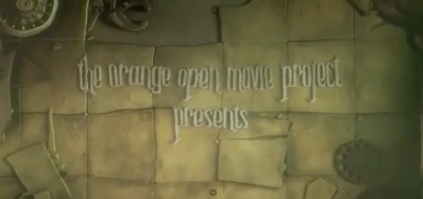
A sample menu marker is shown below (it’s also animated – hover your mouse over the thumbnail to see its animated shadow):
combining techniques: A clickable transcript and A chapter menu
This example is the same as the previous one except that we have kept the features that we saw previously: the buttons for displaying a clickable transcript. The code is longer, but it’s just a combination of the “clickable transcript” example from the previous lesson, and the code from earlier in this lesson.

 HTML game