You may have noticed that with many browsers, the standard implementation of the video element does not let the user choose the subtitle language…
Read this article by Ian Devlin about the current status of multiple WebVTT track support by the different browsers, as at May 2015. Note that currently (July 2016), neither Chrome nor FireFox offers a menu to choose the track to display.
However, it’s easy to implement this feature using the Track API.
Here is a simple example at JSBin: we added two buttons below the video to enable/disable subtitles/captions and let you choose which track you prefer.
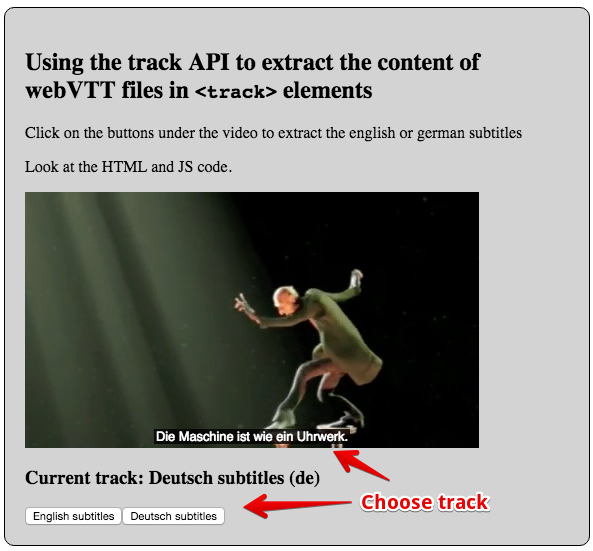
HTML code:
- …
- <body onload=”init()”>
- …
- <video id=”myVideo” preload=”metadata” controls crossOrigin=”anonymous” >
- <source src=”https://…../elephants-dream-medium.mp4″
- type=”video/mp4″>
- <source src=”https://…../elephants-dream-medium.webm”
- type=”video/webm”>
- <track label=”English subtitles”
- kind=”subtitles”
- srclang=”en”
- src=”https://…../elephants-dream-subtitles-en.vtt”
- default>
- <track label=”Deutsch subtitles”
- kind=”subtitles”
- srclang=”de”
- src=”https://…../elephants-dream-subtitles-de.vtt”>
- <track label=”English chapters”
- kind=”chapters”
- srclang=”en”
- src=”https://…../elephants-dream-chapters-en.vtt”>
- </video>
- <h3>Current track: <span id=”currentLang”></span></h3>
- </section>
- …
JavaScript code:
- var langButtonDiv, currentLangSpan, video;
- function init() {
- langButtonDiv = document.querySelector(“#langButtonDiv”);
- currentLangSpan = document.querySelector(“#currentLang”);
- video = document.querySelector(“#myVideo”);
- console.log(“Number of tracks = “
- + video.textTracks.length);
- // Updates the display of the current track activated
- currentLangSpan.innerHTML = activeTrack();
- // Build the buttons for choosing a track
- buildButtons();
- }
- function activeTrack() {
- for (var i = 0; i < video.textTracks.length; i++) {
- if(video.textTracks[i].mode === ‘showing’) {
- return video.textTracks[i].label + ” (“
- + video.textTracks[i].language + “)”;
- }
- }
- return “no subtitles/caption selected”;
- }
- function buildButtons() {
- if (video.textTracks) { // if the video contains track elements
- // For each track, create a button
- for (var i = 0; i < video.textTracks.length; i++) {
- // We create buttons only for the caption and subtitle tracks
- var track = video.textTracks[i];
- if((track.kind !== “subtitles”) && (track.kind !== “captions”))
- continue;
- // create a button for track number i
- createButton(video.textTracks[i]);
- }
- }
- }
- function createButton(track) {
- // Create a button
- var b = document.createElement(“button”);
- b.value=track.label;
- // use the lang attribute of the button to keep trace of the
- // associated track language. Will be useful in the click listener
- b.setAttribute(“lang”, track.language);
- b.addEventListener(‘click’, function(e) {
- // Check which track is the track with the language we’re looking for
- // Get the value of the lang attribute of the clicked button
- var lang = this.getAttribute(‘lang’);
- for (var i = 0; i < video.textTracks.length; i++) {
- if (video.textTracks[i].language == lang) {
- video.textTracks[i].mode = ‘showing’;
- } else {
- video.textTracks[i].mode = ‘hidden’;
- }
- }
- // Updates the span so that it displays the new active track
- currentLangSpan.innerHTML = activeTrack();
- });
- // Creates a label inside the button
- b.appendChild(document.createTextNode(track.label));
- // Add the button to a div at the end of the HTML document
- langButtonDiv.appendChild(b);
- }
External resource: If you are interested in building a complete custom video player, MDN offers an online tutorial with further information about styling and integrating a “CC” button.
 HTML game